
Skip to main contentArrow Right
Blog thumbnail image for a developer guide showing the Descope logo in teal and blue gradient on the left, a plus sign in the center, and the Open WebUI logo (OI in black on a white circular background) on the right. The text Developer Guide appears at the top in white, and Auth & SSO for Open WebUI appears at the bottom in glowing teal text. The background is a dark blue gradient.

Table of Contents

This tutorial was written by Kumar Harsh, a software developer and devrel enthusiast who loves writing about the latest web technology. Visit Kumar's website to see more of his work!


If you work in the open source LLM space, you are probably already aware of Open WebUI, the popular open source, self-hosted interface for LLMs. While designed to run completely offline (integrating with a locally hosted LLM), Open WebUI can also integrate with OpenAI models to give you everything you need behind the same chat box.

As is the case with most AI chat interfaces, Open WebUI instances often handle sensitive (company) data. Allowing access to the instance without authentication can result in malicious actors accessing AI models and stored conversations. Using secure authentication can help prevent platform misuse and protect user data. Descope is a no-code/low-code authentication platform that supports passwordless login, social logins, and enterprise SSO. It also provides easy integration with Open WebUI instances without needing to build or manage authentication from scratch.

In this article, you will learn how to integrate Descope authentication into an Open WebUI instance. You will learn how to set up user authentication and single sign-on (SSO) and secure access to AI interactions. You’ll also explore some user management features that such an authentication setup can provide out of the box with Open WebUI.

Why adding SSO is important for these types of apps

Open WebUI already offers a traditional username- and password-based authentication setup. However, considering that technologies like Open WebUI are inherently meant to be used internally in an organization, using such an auth setup can introduce a lot of problems.

A username- and password-based authentication setup has risks associated with the strength and safe storage of the passwords chosen by the users. It also adds yet another username and password pair to the already long list of credentials that users need to remember. On top of all this, using Open WebUI’s inbuilt authentication setup means that you cannot centralize user management via your organization’s authentication suite.

To solve these problems, you can use SSO authentication. SSO allows users (most often grouped under the same organization) to log in once and gain access to multiple applications without needing to enter credentials again. This can offer significant advantages:

  • Reduce the risk of weak or reused passwords

  • Eliminate the need for multiple passwords

  • Allow faster access to Open WebUI without repeated authentication

  • Make it possible for IT teams to manage user access centrally

  • Make it easier to onboard and offboard users without handling credentials manually

  • Even supports multitenant access for different teams or organizations

In this tutorial, you’ll learn how to implement all of this using Descope. You’ll use Descope to set up Okta-based SSO login and social auth. You’ll then turn Descope into an SSO identity provider (IdP) to integrate with Open WebUI and delegate access management from Open WebUI to Descope.

Prerequisites

To follow along, you will need the following:

Setting up Descope

Let’s start by setting up Descope. Head over to your Descope account and start by creating a new project:
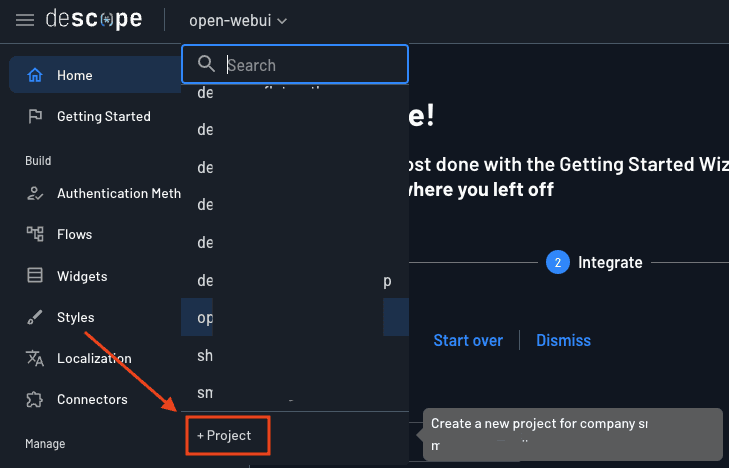
Screenshot of the Descope console interface showing the left sidebar navigation and a tooltip for creating a new project. The header displays the Descope logo and a project selector dropdown showing open-webui as the current project. The left sidebar contains a Search field at the top, followed by navigation items including Home, Getting Started, and a Build section with Authentication Meth (truncated), Flows, Widgets, Styles, Localization, and Connectors. Below these is a Manage section with a + Project button highlighted by an orange arrow pointing to it. A tooltip near the button reads Create a new project for company si... (truncated). The main content area partially visible on the right shows text indicating the Getting Started Wizard with options to pick up where you left off, an Integrate step marked as step 2, and Start over and Dismiss links.
Fig: Creating a new project in Descope

Name it anything you like and choose Non-Production as the environment. Click the Create button to create the project.
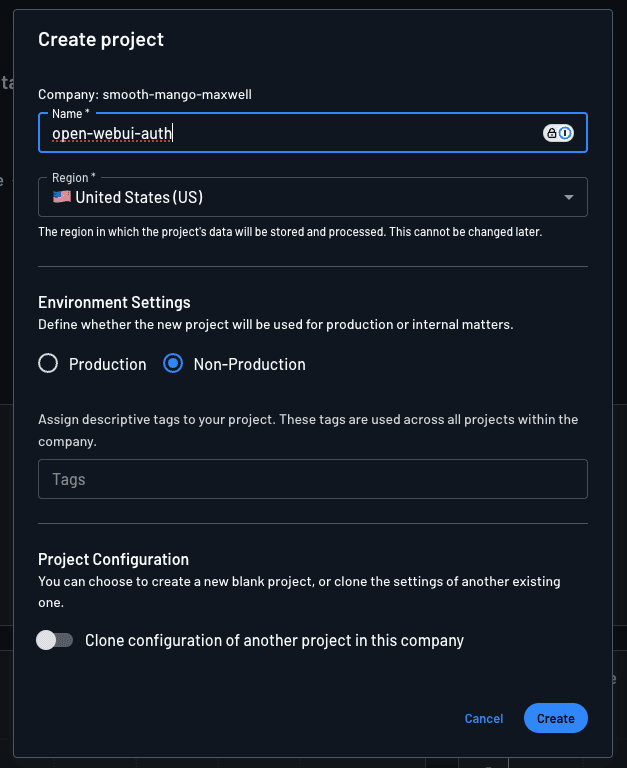
Screenshot of the Descope Create project modal dialog. At the top, the company is displayed as smooth-mango-maxwell. The Name field contains open-webui-auth with a lock and info icon to the right. The Region dropdown is set to United States (US) with a US flag icon, and helper text below reads The region in which the project's data will be stored and processed. This cannot be changed later. The Environment Settings section includes the description Define whether the new project will be used for production or internal matters, with two radio button options: Production (unselected) and Non-Production (selected). Below is a Tags input field with helper text reading Assign descriptive tags to your project. These tags are used across all projects within the company. The Project Configuration section at the bottom includes the description You can choose to create a new blank project, or clone the settings of another existing one, with a toggle switch labeled Clone configuration of another project in this company that is currently off. The modal footer contains Cancel and Create buttons, with Create styled as the primary blue button.
Fig: Entering the new project’s details

Click Get Started to start creating the auth flows for your Open WebUI app.
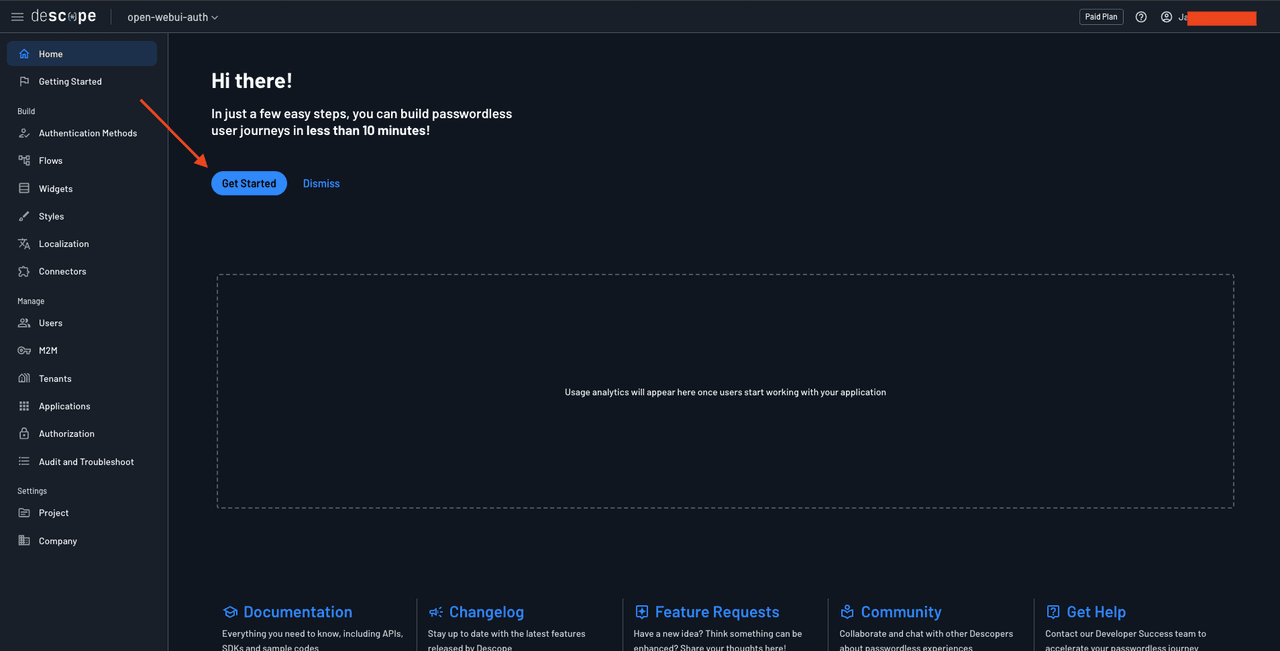
Screenshot of the Descope console Home page for the open-webui-auth project. The header displays the Descope logo, the project name open-webui-auth with a dropdown, and in the top right corner a Paid Plan badge, help icon, user icon, and a partially obscured user name. The left sidebar shows navigation organized into sections: Home and Getting Started at the top, then a Build section containing Authentication Methods, Flows, Widgets, Styles, Localization, and Connectors. The Manage section includes Users, M2M, Tenants, Applications, Authorization, and Audit and Troubleshoot. The Settings section contains Project and Company. The main content area displays a welcome message reading Hi there! followed by In just a few easy steps, you can build passwordless user journeys in less than 10 minutes! Below this are Get Started and Dismiss buttons, with an orange arrow pointing to the Get Started button. A placeholder panel shows the message Usage analytics will appear here once users start working with your application. At the bottom, four resource cards are displayed: Documentation with the description Everything you need to know, including APIs, SDKs and sample codes; Changelog with Stay up to date with the latest features released by Descope; Feature Requests with Have a new idea? Think something can be enhanced? Share your thoughts here!; Community with Collaborate and chat with other Descopers about passwordless experiences; and Get Help with Contact our Developer Success team to accelerate your passwordless journey.
Fig: Clicking the Get Started button to create auth flows

Choose Businesses on the Who uses your application page to be able to create tenants and add organization-level SSO if needed in the future:
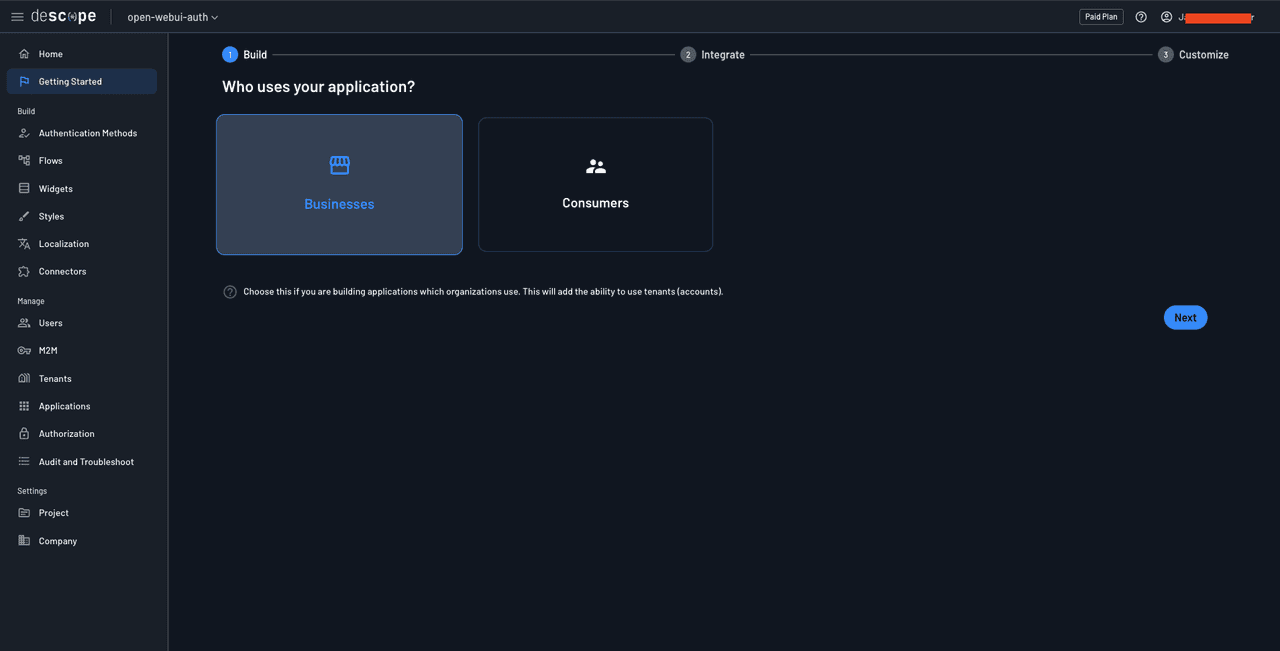
Screenshot of the Descope Getting Started wizard at step 1 of 3, labeled Build, with step 2 Integrate and step 3 Customize shown in the progress indicator at the top. The main heading reads Who uses your application? with two selection cards below. The left card displays a briefcase icon and the label Businesses, shown with a selected state indicated by a highlighted border. The right card displays a people icon and the label Consumers in an unselected state. Below the cards, helper text with an info icon reads Choose this if you are building applications which organizations use. This will add the ability to use tenants (accounts). A blue Next button appears in the bottom right corner. The left sidebar shows the same navigation as before with Getting Started currently highlighted.
Fig: Choosing businesses as the app users

On the Which authentication methods do you want to use? screen, choose social login and SSO and click Next.
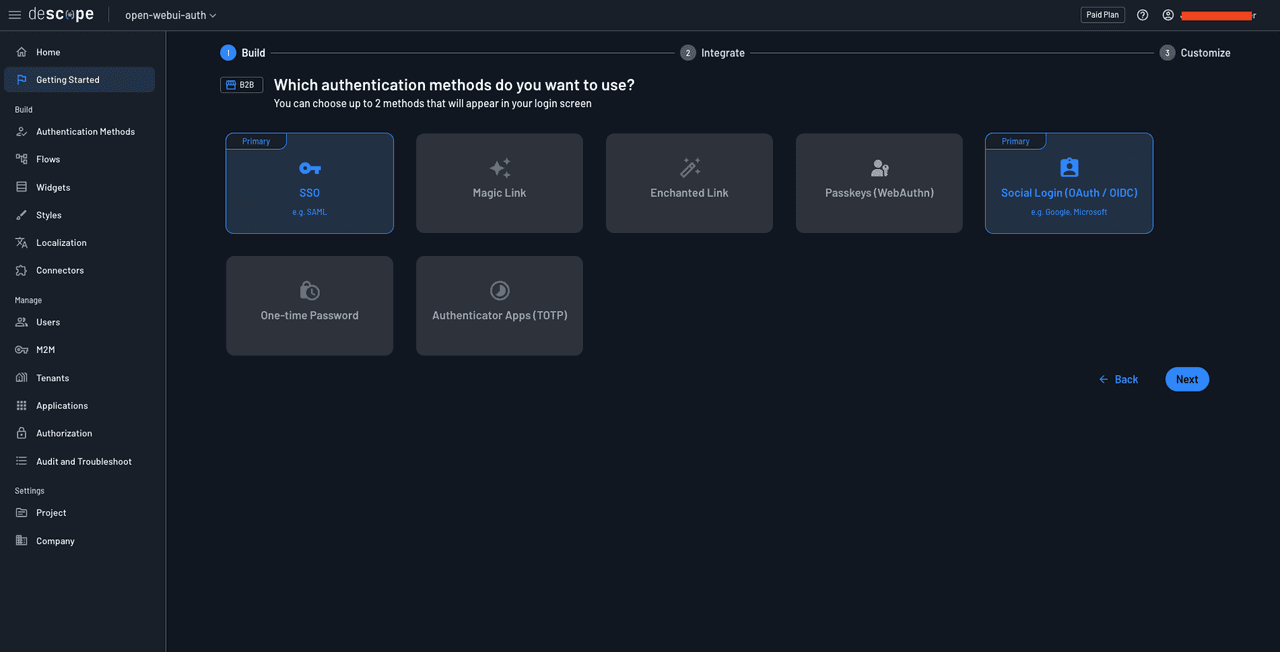
Screenshot of the Descope Getting Started wizard at step 1 Build, showing the authentication method selection screen. A B2B badge appears next to the heading Which authentication methods do you want to use? with subtext reading You can choose up to 2 methods that will appear in your login screen. Six authentication method cards are displayed in two rows. The top row shows: SSO with a key icon, labeled e.g. SAML and marked with a Primary badge indicating it is selected; Magic Link with a sparkle icon; Enchanted Link with a wand icon; Passkeys (WebAuthn) with a person badge icon; and Social Login (OAuth / OIDC) with a person icon, labeled e.g. Google, Microsoft and also marked with a Primary badge indicating it is selected. The bottom row shows: One-time Password with a phone icon; and Authenticator Apps (TOTP) with a clock icon. The SSO and Social Login cards appear highlighted to indicate selection. Back and Next buttons appear in the bottom right corner.
Fig: Selecting social login and SSO as auth methods

On the Which method do you want to use for MFA? page, click the Go ahead without MFA button:
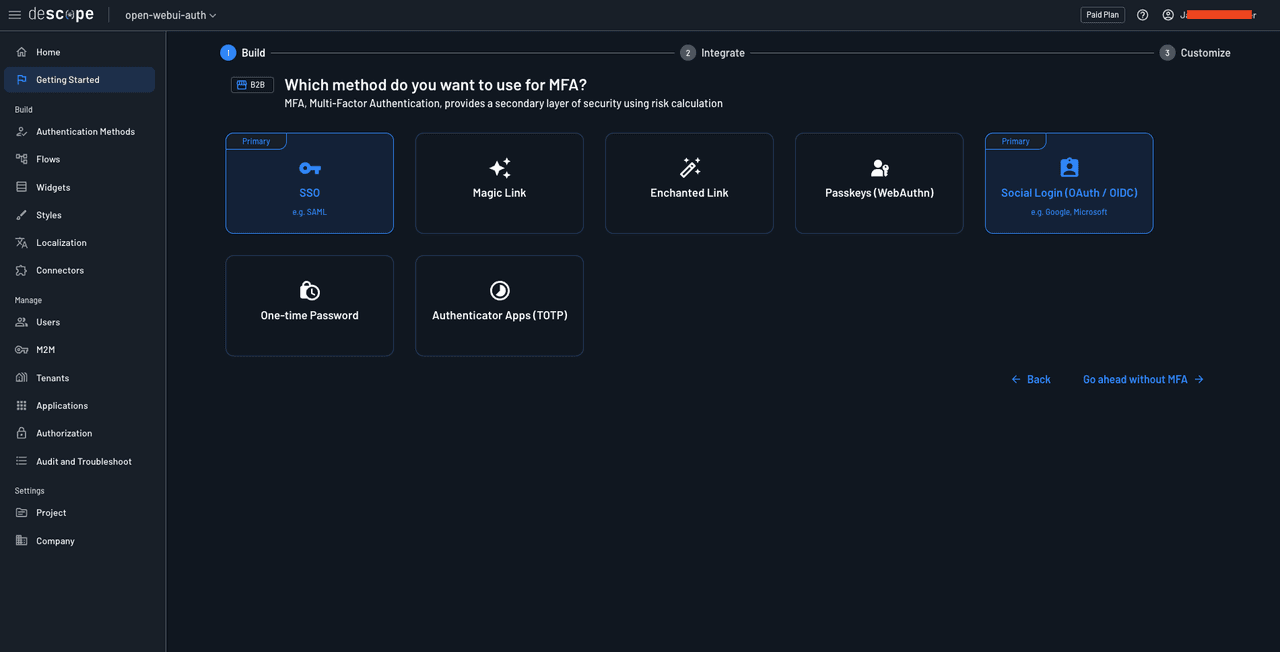
Screenshot of the Descope Getting Started wizard at step 1 Build, showing the MFA selection screen. A B2B badge appears next to the heading Which method do you want to use for MFA? with subtext reading MFA, Multi-Factor Authentication, provides a secondary layer of security using risk calculation. The same six authentication method cards are displayed as on the previous screen: SSO with a key icon marked with a Primary badge and labeled e.g. SAML; Magic Link with a sparkle icon; Enchanted Link with a wand icon; Passkeys (WebAuthn) with a person badge icon; Social Login (OAuth / OIDC) with a person icon marked with a Primary badge and labeled e.g. Google, Microsoft; One-time Password with a phone icon; and Authenticator Apps (TOTP) with a clock icon. None of the MFA options appear selected. The bottom right shows a Back button with a left arrow and a Go ahead without MFA link with a right arrow, indicating the option to skip MFA configuration.
Fig: Continuing without MFA

On the next page, choose the first login screen as it contains both SSO and social login buttons:
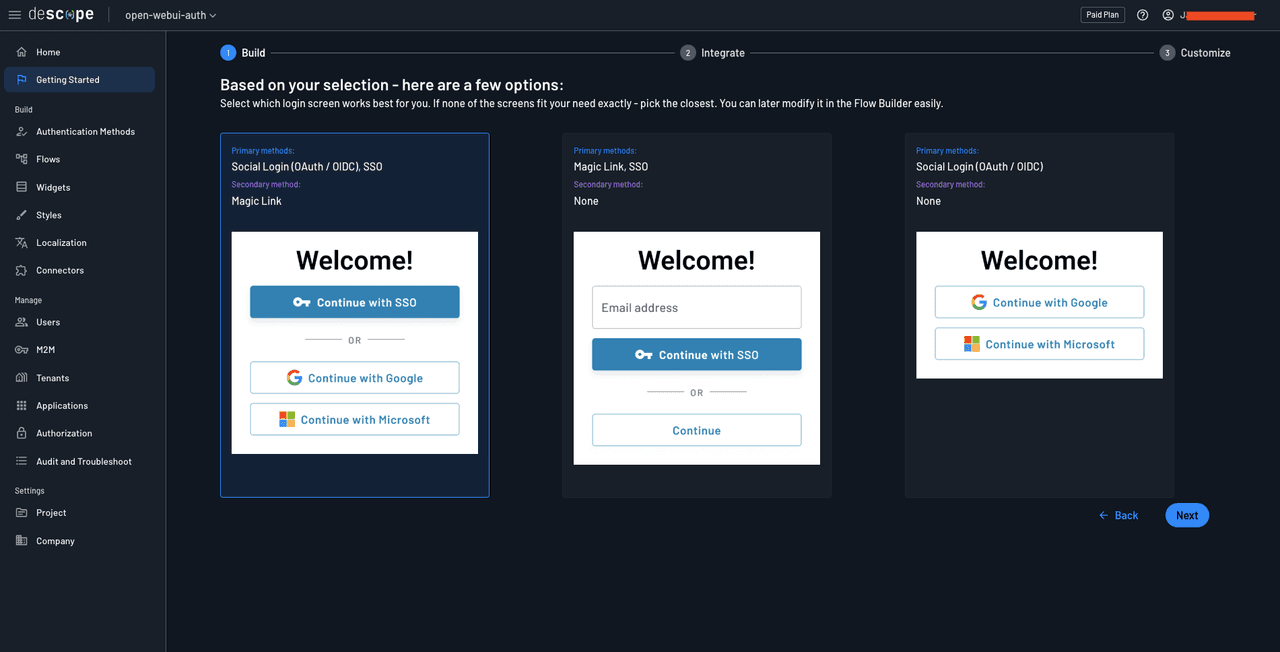
Screenshot of the Descope Getting Started wizard at step 1 Build, showing login screen layout options. The heading reads Based on your selection - here are a few options: with subtext Select which login screen works best for you. If none of the screens fit your need exactly - pick the closest. You can later modify it in the Flow Builder easily. Three login screen preview cards are displayed. The first card on the left shows Primary methods: Social Login (OAuth / OIDC), SSO and Secondary method: Magic Link, with a preview displaying a Welcome! heading, a filled blue Continue with SSO button, an OR divider, and outlined Continue with Google and Continue with Microsoft buttons with their respective logos. This card appears selected with a highlighted border. The second card in the middle shows Primary methods: Magic Link, SSO and Secondary method: None, with a preview displaying Welcome!, an Email address input field, a filled blue Continue with SSO button, an OR divider, and an outlined Continue button. The third card on the right shows Primary methods: Social Login (OAuth / OIDC) and Secondary method: None, with a preview displaying Welcome!, an outlined Continue with Google button with Google logo, and an outlined Continue with Microsoft button with Microsoft logo. Back and Next buttons appear in the bottom right corner.
Fig: Choosing the login screen to use in the app

Click the Next button. You’re now ready to create your authentication flows.
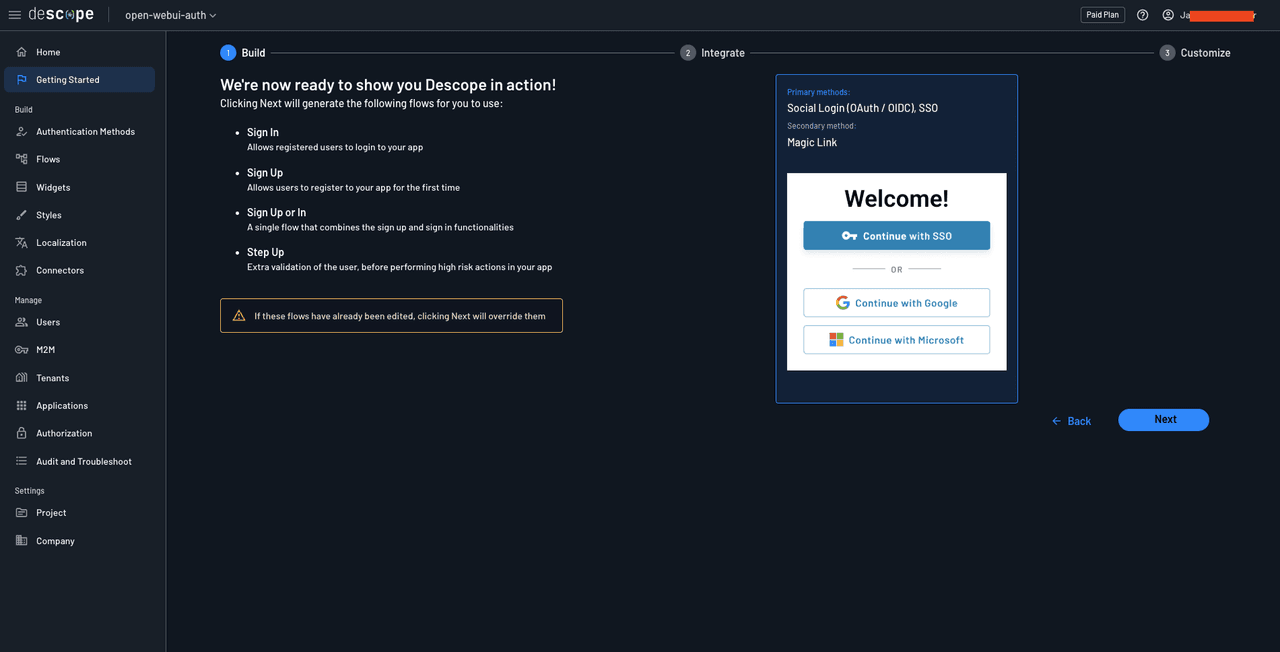
Screenshot of the Descope Getting Started wizard at step 1 Build, showing a confirmation screen before generating authentication flows. The heading reads We're now ready to show you Descope in action! with subtext Clicking Next will generate the following flows for you to use: followed by a bulleted list of four flows: Sign In described as Allows registered users to login to your app; Sign Up described as Allows users to register to your app for the first time; Sign Up or In described as A single flow that combines the sign up and sign in functionalities; and Step Up described as Extra validation of the user, before performing high risk actions in your app. A warning banner with a yellow triangle icon reads If these flows have already been edited, clicking Next will override them. To the right, a preview card displays the selected login screen configuration showing Primary methods: Social Login (OAuth / OIDC), SSO and Secondary method: Magic Link, with a preview of the Welcome! screen containing a filled Continue with SSO button, an OR divider, and outlined Continue with Google and Continue with Microsoft buttons. Back and Next buttons appear in the bottom right corner.
Fig: Creating the auth flow

Click Next to create the authentication flows. The following page will present instructions on how to integrate the flows in your application. This means that you’ve successfully set up the authentication flows.

For the next steps, you need to do two things: configure an SSO tenant (through a third-party service like Okta) and configure Descope to be used as an SSO IdP in Open WebUI through OpenID Connect (OIDC). Let’s do them one by one.

B2B Enterprise Readiness Checklist

Score your tech stack on enterprise readiness pillars - from dev and IT experience to security and architecture.

Download

Thumbnail image showing two overlapping document previews against a black background. The front document displays a dark blue cover with the Descope logo at the top, the title A Practical Checklist for B2B Enterprise Readiness, and a graphic of ascending bar chart steps leading to a building icon representing enterprise growth. Behind it, a white document page shows a checklist or form layout with multiple rows and checkbox columns, representing the practical checklist content inside the guide.

Setting up an SSO connection in Descope

To set up an SSO tenant and connection in Descope, you first need to create one in Okta. To do that, log in to your Okta admin account, navigate to Applications > Applications, and click Browse App Catalog:
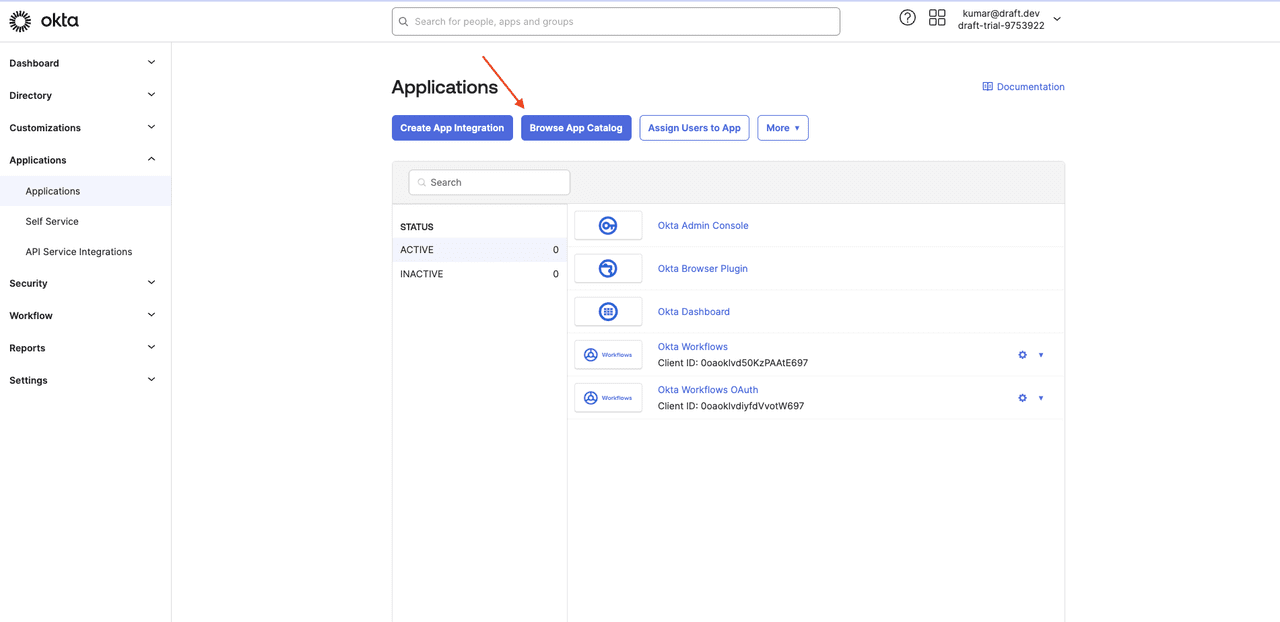
Screenshot of the Okta admin console Applications page. The header shows the Okta logo on the left, a search bar with placeholder text Search for people, apps and groups in the center, and user information displaying kumar@draft.dev and draft-trial-9753922 on the right with help and grid icons. The left sidebar navigation includes Dashboard, Directory, Customizations, Applications (expanded to show Applications, Self Service, and API Service Integrations as sub-items), Security, Workflow, Reports, and Settings, each with expandable arrows. The main content area has the heading Applications with a Documentation link in the top right. Below are four action buttons: Create App Integration, Browse App Catalog (highlighted with an orange arrow pointing to it), Assign Users to App, and More with a dropdown arrow. A Search field appears below the buttons. The left panel shows STATUS with ACTIVE showing 0 and INACTIVE showing 0. The right panel lists five existing applications with their icons: Okta Admin Console, Okta Browser Plugin, Okta Dashboard, Okta Workflows with Client ID: 0oaoklvd50KzPAAtE697 and settings icons, and Okta Workflows OAuth with Client ID: 0oaoklvdjyfdVvotW697 and settings icons.
Fig: The app catalog

Search for Descope and select the Descope application:
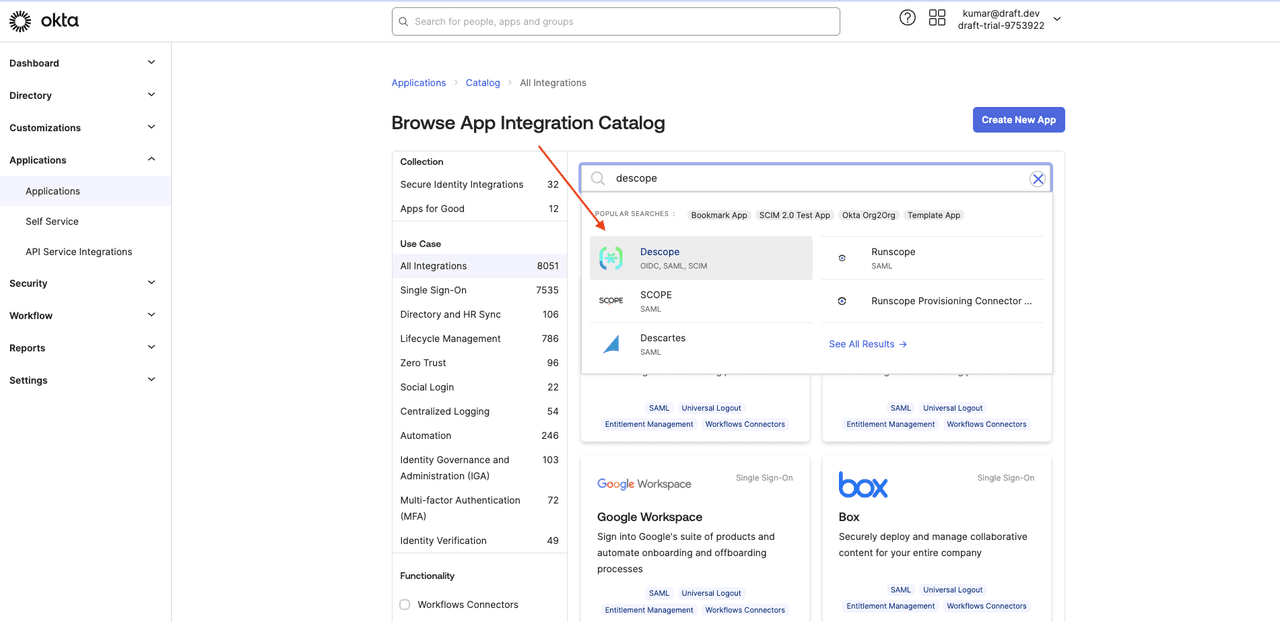
Screenshot of the Okta Browse App Integration Catalog page with a search for Descope. The breadcrumb navigation shows Applications, Catalog, and All Integrations. The heading reads Browse App Integration Catalog with a Create New App button in the top right. The left sidebar displays filter options organized into Collection (showing Secure Identity Integrations with 32, Apps for Good with 12), Use Case (showing All Integrations with 8051, Single Sign-On with 7535, Directory and HR Sync with 106, Lifecycle Management with 786, Zero Trust with 96, Social Login with 22, Centralized Logging with 54, Automation with 246, Identity Governance and Administration (IGA) with 103, Multi-factor Authentication (MFA) with 72, Identity Verification with 49), and Functionality with a Workflows Connectors checkbox. The main content area shows a search field with descope entered and an orange arrow pointing to it. A dropdown displays search results including Descope with OIDC, SAML, SCIM tags, SCOPE with SAML tag, Descartes with SAML tag, Runscope with SAML tag, and Runscope Provisioning Connector, with a See All Results link. Below the search, partially visible app cards show Google Workspace and Box with their descriptions and tags for SAML, Universal Logout, Entitlement Management, and Workflows Connectors.
Fig: The Descope app

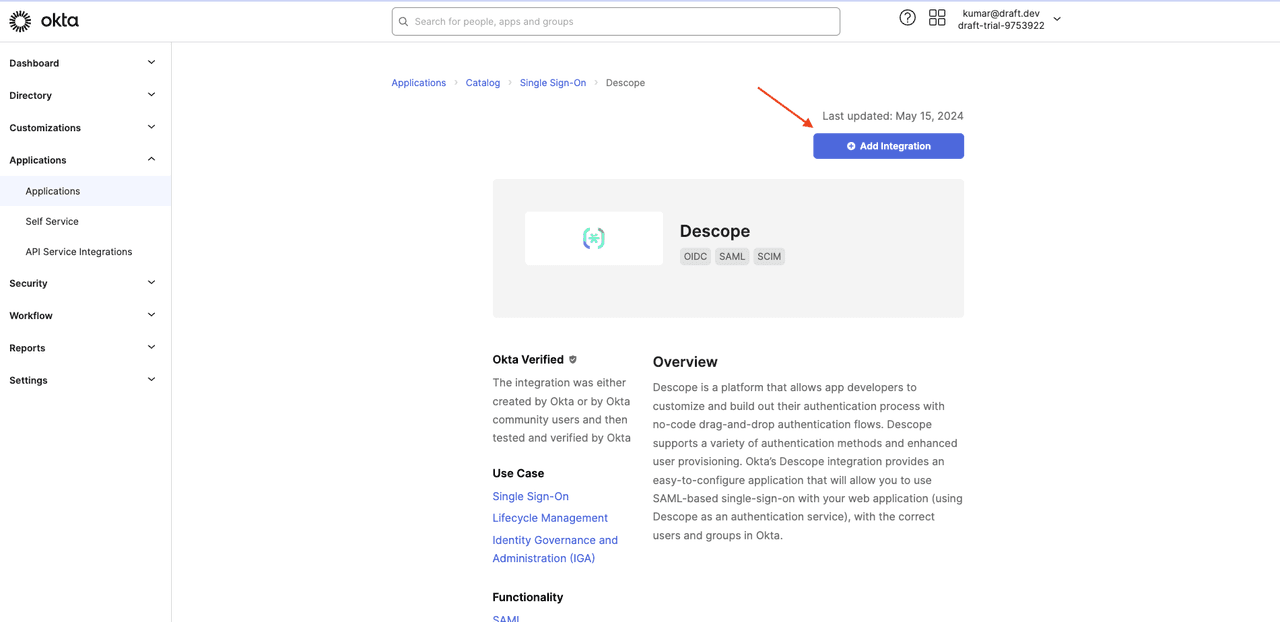
Select + Add Integration:

Screenshot of the Okta app catalog page for the Descope integration. The breadcrumb navigation shows Applications, Catalog, Single Sign-On, and Descope. In the top right, the text Last updated: May 15, 2024 appears above a blue Add Integration button with a plus icon, highlighted by an orange arrow pointing to it. The main content displays a card with the Descope logo (a stylized connected nodes icon in teal) and the name Descope with three tags below: OIDC, SAML, and SCIM. Below the card, an Okta Verified badge with a checkmark appears with explanatory text reading The integration was either created by Okta or by Okta community users and then tested and verified by Okta. The Use Case section lists three links: Single Sign-On, Lifecycle Management, and Identity Governance and Administration (IGA). The Overview section on the right contains a description reading Descope is a platform that allows app developers to customize and build out their authentication process with no-code drag-and-drop authentication flows. Descope supports a variety of authentication methods and enhanced user provisioning. Okta's Descope integration provides an easy-to-configure application that will allow you to use SAML-based single-sign-on with your web application (using Descope as an authentication service), with the correct users and groups in Okta. A Functionality section heading appears at the bottom with SAML partially visible.
Fig: Adding the Descope app

Provide a name for the integration, such as Descope, and click Next.
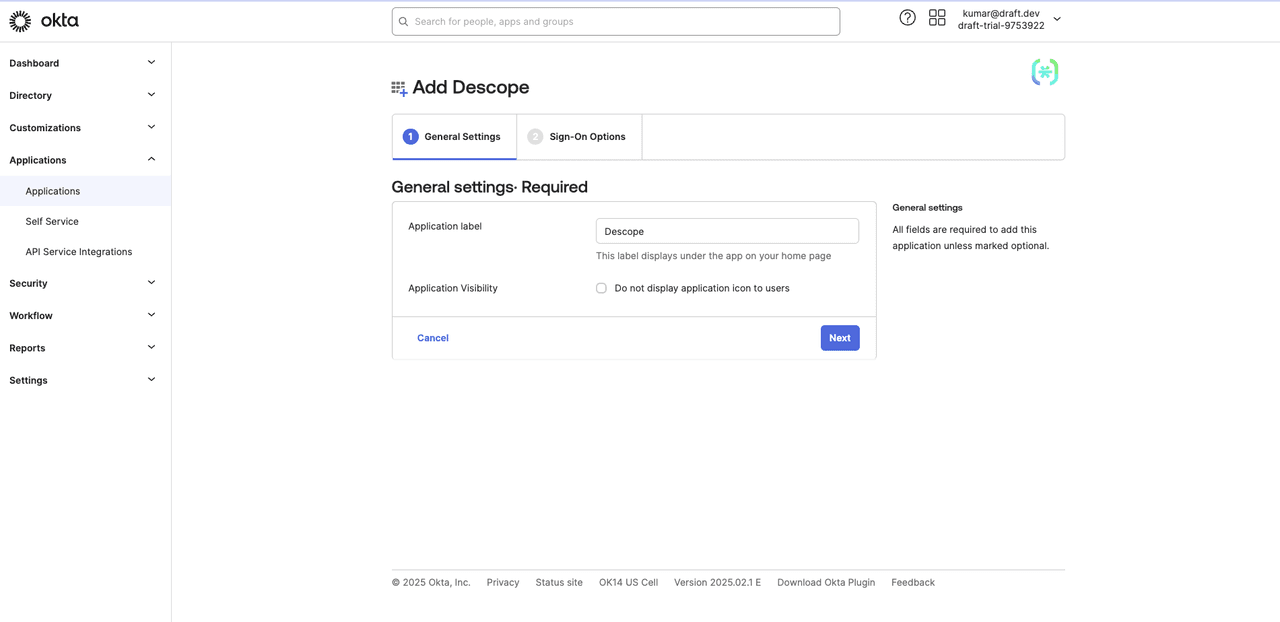
Screenshot of the Okta Add Descope integration wizard at step 1 General Settings, with step 2 Sign-On Options shown in the tab bar. The page heading displays Add Descope with the Descope logo icon, and an Okta Integration Network logo appears in the top right corner. The section heading reads General settings - Required. The form contains two fields: Application label with a text input containing Descope and helper text below reading This label displays under the app on your home page; and Application Visibility with an unchecked checkbox labeled Do not display application icon to users. A sidebar on the right shows a General settings heading with explanatory text reading All fields are required to add this application unless marked optional. Cancel and Next buttons appear at the bottom of the form. The page footer displays © 2025 Okta, Inc. with links to Privacy, Status site, OK14 US Cell, Version 2025.02.1 E, Download Okta Plugin, and Feedback.
Fig: Setting an integration name

Select OpenID Connect as the sign-on method, and paste https://api.descope.com/v1/oauth/callback in the Callback URL field:
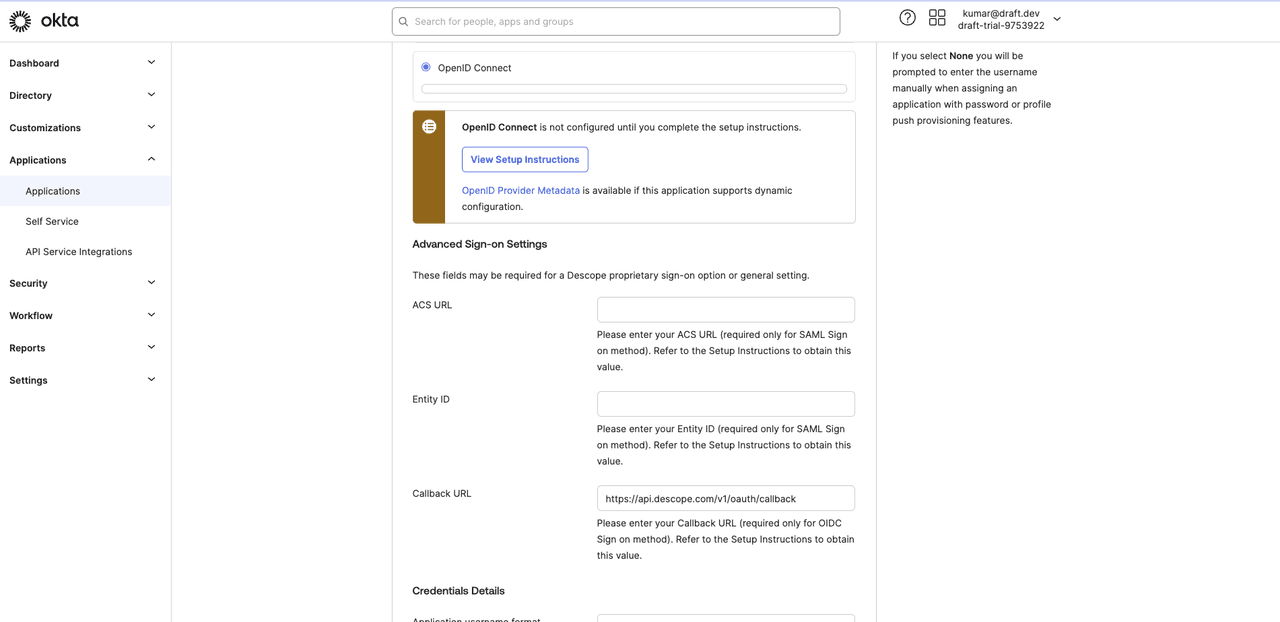
Screenshot of the Okta Add Descope integration wizard showing the Sign-On Options configuration. At the top, an OpenID Connect radio button option is visible with a progress bar below it. An information banner displays an icon and the message OpenID Connect is not configured until you complete the setup instructions, with a View Setup Instructions button and a link to OpenID Provider Metadata with text reading is available if this application supports dynamic configuration. Below is the Advanced Sign-on Settings section with the description These fields may be required for a Descope proprietary sign-on option or general setting. Three form fields are shown: ACS URL with an empty text input and helper text reading Please enter your ACS URL (required only for SAML Sign on method). Refer to the Setup Instructions to obtain this value; Entity Id with an empty text input and helper text reading Please enter your Entity ID (required only for SAML Sign on method). Refer to the Setup Instructions to obtain this value; and Callback URL with a text input containing https://api.descope.com/v1/oauth/callback and helper text reading Please enter your Callback URL (required only for OIDC Sign on method). Refer to the Setup Instructions to obtain this value. A Credentials Details section heading appears at the bottom with Application username format partially visible. A sidebar note on the right reads If you select None you will be prompted to enter the username manually when assigning an application with password or profile push provisioning features.
Fig: The callback URL

Click Done to save the changes. On the app details page, go to the Sign On tab and copy your client ID and client secret:
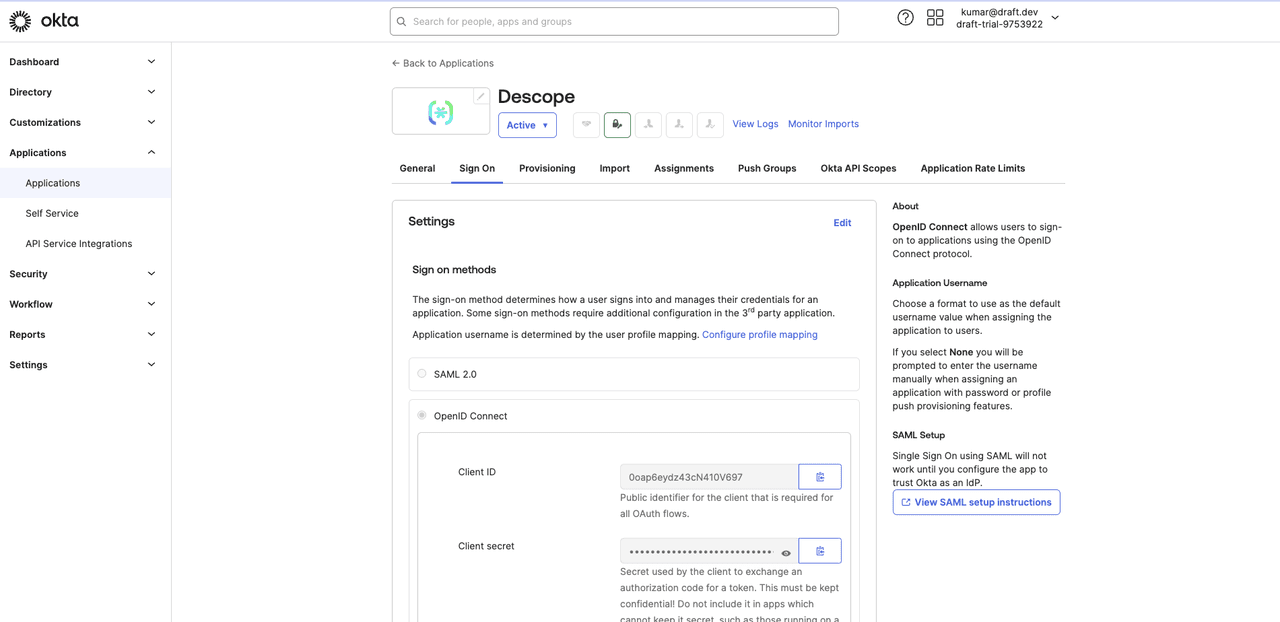
Screenshot of the Okta Descope application configuration page showing the Sign On tab. A back arrow with Back to Applications link appears at the top left. The page header displays the Descope logo and name with a green Active dropdown badge, followed by several icon buttons and View Logs and Monitor Imports links. A horizontal tab bar shows General, Sign On (currently selected), Provisioning, Import, Assignments, Push Groups, Okta API Scopes, and Application Rate Limits. The main content area shows a Settings section with an Edit link. Under Sign on methods, explanatory text reads The sign-on method determines how a user signs into and manages their credentials for an application. Some sign-on methods require additional configuration in the 3rd party application. Below this, text reads Application username is determined by the user profile mapping. Configure profile mapping with a link. Two radio button options appear: SAML 2.0 (unselected) and OpenID Connect (selected and expanded). The expanded OpenID Connect section displays Client ID with the value 0oap6eydz43cN410V697 in a text field with copy icons, and helper text reading Public identifier for the client that is required for all OAuth flows. Below is Client secret with a masked password field showing dots, visibility toggle, and copy icon, with helper text reading Secret used by the client to exchange an authorization code for a token. This must be kept confidential! Do not include it in apps which cannot keep it secret, such as those running on a (text truncates). The right sidebar shows an About section explaining OpenID Connect allows users to sign-on to applications using the OpenID Connect protocol, an Application Username section about choosing default username format, and a SAML Setup section noting Single Sign On using SAML will not work until you configure the app to trust Okta as an IdP, with a View SAML setup instructions link.
Fig: The sign-on details

In the Descope console, head over to Manage > Tenants from the left navigation page and click the +Tenant button.
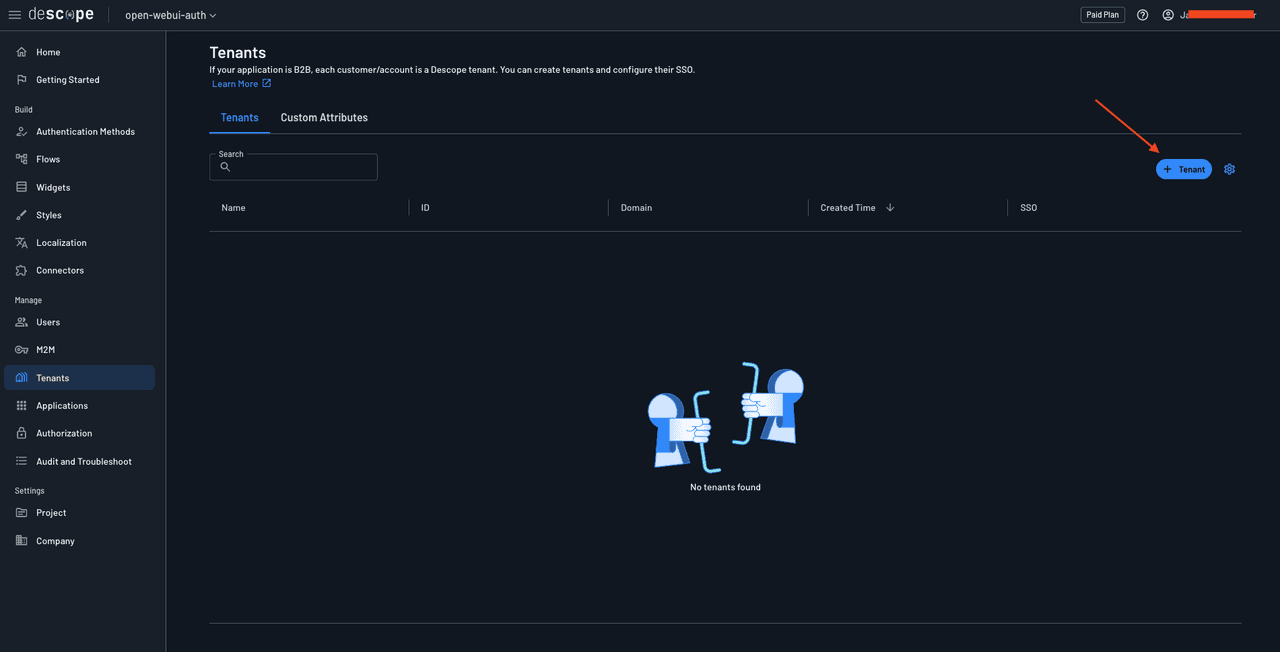
Screenshot of the Descope console Tenants page. The heading reads Tenants with subtext If your application is B2B, each customer/account is a Descope tenant. You can create tenants and configure their SSO. A Learn More link with an external link icon appears below. Two tabs are shown: Tenants (currently selected) and Custom Attributes. Below is a Search field with a search icon. A table displays column headers for Name, ID, Domain, Created Time with a sort arrow, and SSO. An orange arrow points to a + Tenant button with a settings gear icon in the top right of the table area. The main content area shows an illustration of two cartoon figures with megaphones in blue tones, with the message No tenants found below. The left sidebar shows Tenants highlighted in the navigation under the Manage section.
Fig: Creating a new tenant

Give the tenant a name, such as Okta, and click Create. Select the tenant to open the tenant details page, add your email domain to the list of allowed domains, and save the changes.
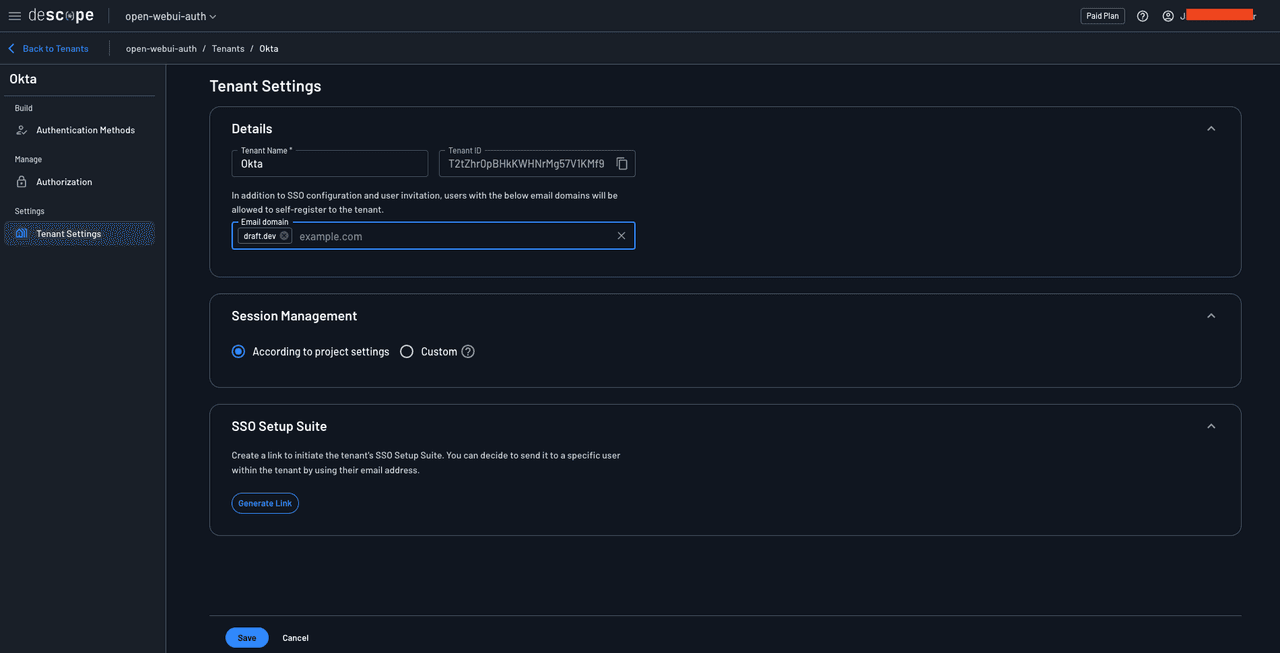
Screenshot of the Descope Tenant Settings page for a tenant named Okta. The breadcrumb navigation shows open-webui-auth, Tenants, and Okta. A Back to Tenants link with a left arrow appears in the top left. The left sidebar shows the tenant name Okta at the top, with a Build section containing Authentication Methods, a Manage section containing Authorization, and a Settings section containing Tenant Settings (currently highlighted). The main content area displays the Tenant Settings heading with three collapsible sections. The Details section is expanded showing Tenant Name field with value Okta, Tenant ID field with value T2tZhr0pBHkKWHNrMg57V1KMf9 and a copy icon. Below is explanatory text reading In addition to SSO configuration and user invitation, users with the below email domains will be allowed to self-register to the tenant. An Email domain field shows draft.dev as a tag with an X to remove it, and a placeholder text example.com for adding additional domains, with a clear X icon on the right. The Session Management section is expanded showing two radio button options: According to project settings (selected) and Custom with a help icon. The SSO Setup Suite section is expanded with text reading Create a link to initiate the tenant's SSO Setup Suite. You can decide to send it to a specific user within the tenant by using their email address, and a Generate Link button below. Save and Cancel buttons appear at the bottom of the page.
Fig: Adding an email domain

Navigate to Authentication Methods > SSO and select OIDC as the authentication method. Under Tenant Details, add your email domain.

Scroll down to the SSO configuration > Account Settings section and provide the values as follows:

  • Provider Name: Okta

  • Client ID: The client ID you obtained from the Okta dashboard

  • Client Secret: The client secret you obtained from the Okta dashboard

  • Scope: openid profile email

  • Grant Type: Authorization code

To find out the values for the Connection Settings section, you will need to come back to the Okta application setup and find the following notice that provides a link to the metadata values for your Okta instance:
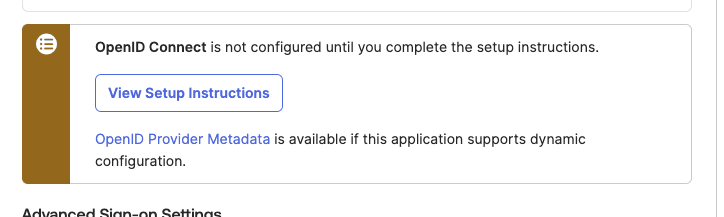
Screenshot of an informational banner from the Okta dashboard with a circular icon on the left. The banner text reads OpenID Connect is not configured until you complete the setup instructions. Below is an outlined View Setup Instructions button. A link labeled OpenID Provider Metadata appears with text reading is available if this application supports dynamic configuration. The heading Advanced Sign-on Settings is partially visible at the bottom of the image.
Fig: The notice on the Okta dashboard

Click the OpenID Provider Metadata link to open the OpenID configuration page. You’ll need the issuer, authorization_endpoint, token_endpoint, userinfo_endpoint, and jwks_uri values.
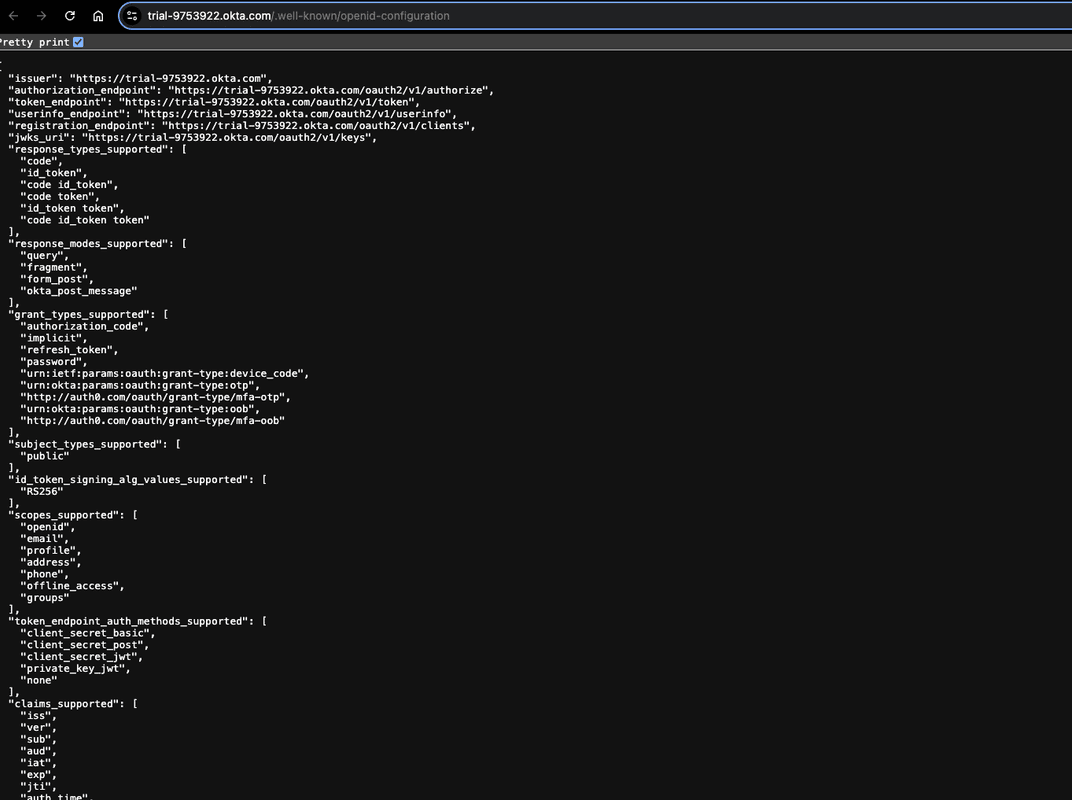
Screenshot of a browser displaying the OpenID Connect well-known configuration endpoint at the URL trial-9753922.okta.com/.well-known/openid-configuration. A Pretty print checkbox is checked at the top. The page displays JSON configuration data with the following key values: issuer set to https://trial-9753922.okta.com, authorization_endpoint set to https://trial-9753922.okta.com/oauth2/v1/authorize, token_endpoint set to https://trial-9753922.okta.com/oauth2/v1/token, userinfo_endpoint set to https://trial-9753922.okta.com/oauth2/v1/userinfo, registration_endpoint set to https://trial-9753922.okta.com/oauth2/v1/clients, jwks_uri set to https://trial-9753922.okta.com/oauth2/v1/keys. The response_types_supported array includes code, id_token, code id_token, code token, id_token token, and code id_token token. The response_modes_supported array includes query, fragment, form_post, and okta_post_message. The grant_types_supported array includes authorization_code, implicit, refresh_token, password, urn:ietf:params:oauth:grant-type:device_code, urn:okta:params:oauth:grant-type:otp, http://auth0.com/oauth/grant-type/mfa-otp, urn:okta:params:oauth:grant-type:oob, and http://auth0.com/oauth/grant-type/mfa-oob. The subject_types_supported array includes public. The id_token_signing_alg_values_supported array includes RS256. The scopes_supported array includes openid, email, profile, address, phone, offline_access, and groups. The token_endpoint_auth_methods_supported array includes client_secret_basic, client_secret_post, client_secret_jwt, private_key_jwt, and none. The claims_supported array shows iss, ver, sub, aud, iat, exp, jti, and auth_time with additional values cut off.
Fig: Copying the connection details

In the Descope console, enter these values in their respective fields and save the changes.

Screenshot of the Descope tenant SSO configuration page for Okta. The breadcrumb shows open-webui-auth, Tenants, and Okta, with a Back to Tenants link. The left sidebar displays the tenant name Okta at the top, with SSO and Passwords options showing expandable arrows, and below that Build section with Authentication Methods, Manage section with Authorization, and Settings section with Tenant Settings. The main content area shows Account Settings with the following form fields: Provider Name containing Okta; Client ID containing 0oap6eydz43cN410V697; Client Secret showing masked dots; Scopes showing three tags for openid, profile, and email each with X icons to remove; Grant Type dropdown set to Authorization code with a help icon. The Connection Settings section has the subtext Provide information on the connection to the provider and contains: Issuer field with value https://trial-[redacted]2.okta.com (partially obscured); Authorization Endpoint with value https://trial-[redacted]2.okta.com/oauth2/v1/authorize; Token Endpoint with value https://trial-[redacted]2.okta.com/oauth2/v1/token; User Info Endpoint with value https://trial-[redacted]2.okta.com/oauth2/v1/userinfo; JWKs Endpoint with value https://trial-[redacted]2.okta.com/oauth2/v1/keys with a help icon. The Prompt section includes the text Specify how the Authorization Server prompts the end user for re-authentication and consent with a dropdown set to Prompt. Save and Cancel buttons appear at the bottom.
Fig: The connection details

To grant users access to the Okta app, you need to assign users to the Descope app. To do this, open the app details page in Okta and select Assignments > Assign > Assign to Groups:
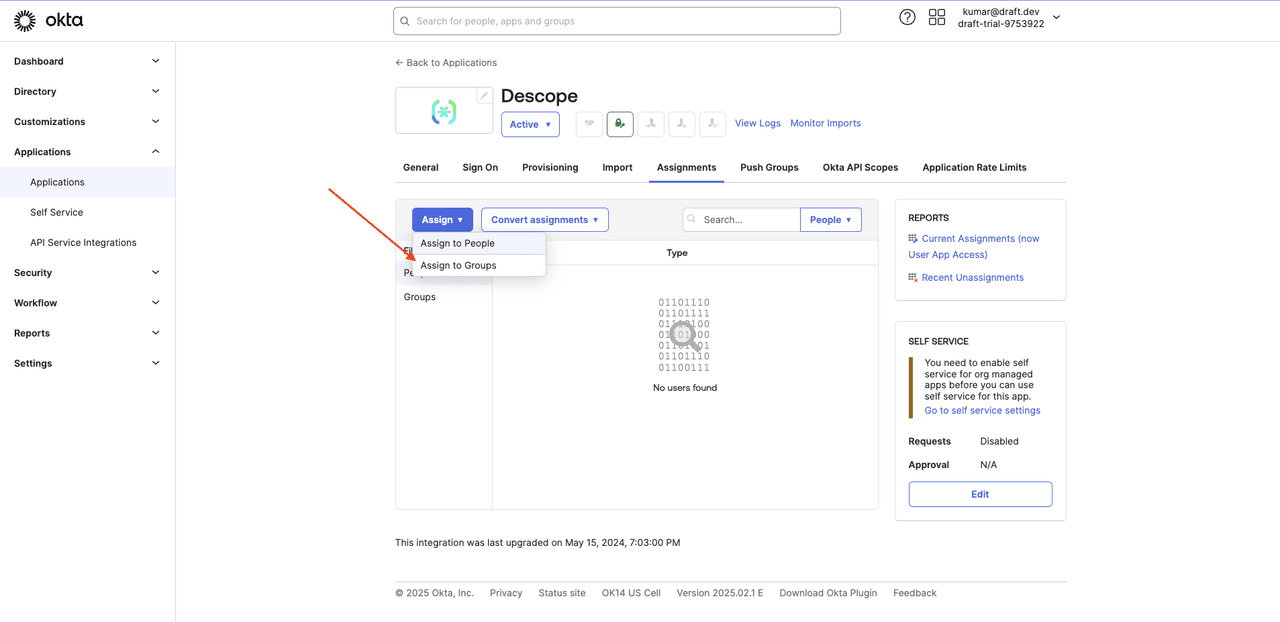
Screenshot of the Okta Descope application page showing the Assignments tab. The header displays the Descope logo and name with a green Active dropdown badge, along with icon buttons and View Logs and Monitor Imports links. The tab bar shows General, Sign On, Provisioning, Import, Assignments (currently selected), Push Groups, Okta API Scopes, and Application Rate Limits. The main content area shows an Assign dropdown button with an orange arrow pointing to it, revealing a dropdown menu with two options: Assign to People and Assign to Groups. Next to it is a Convert assignments dropdown button. A Search field and People dropdown filter appear on the right. Below is a table with columns for Filter (partially visible), People, Groups, and Type. The center shows an illustration of binary code (01101110, 01101111, etc.) forming a circular pattern with the message No users found. The right sidebar contains a Reports section with links to Current Assignments (now User App Access) and Recent Unassignments, and a Self Service section with explanatory text reading You need to enable self service for org managed apps before you can use self service for this app with a Go to self service settings link. Below shows Requests as Disabled and Approval as N/A with an Edit button. At the bottom, text reads This integration was last upgraded on May 15, 2024, 7:03:00 PM. The footer shows © 2025 Okta, Inc. with links to Privacy, Status site, OK14 US Cell, Version 2025.02.1 E, Download Okta Plugin, and Feedback.
Fig: Assigning the Descope app

Click the Assign button next to the Everyone group to allow all users to log in via SSO, and click Done to save the changes.
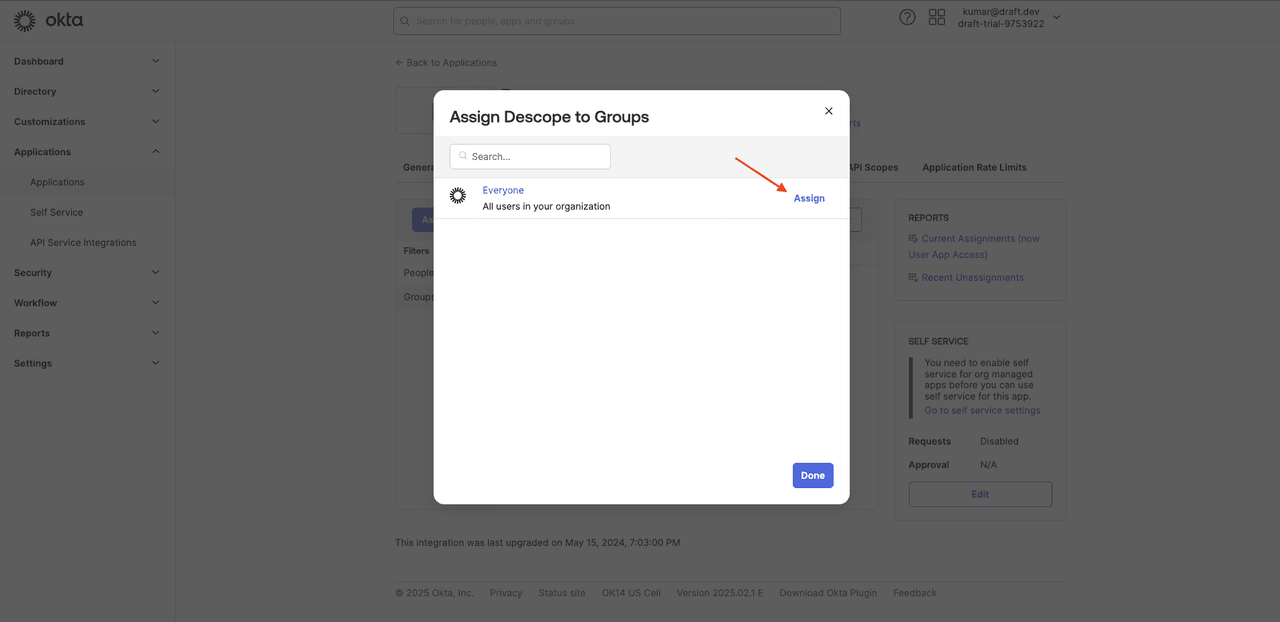
Screenshot of the Okta Assign Descope to Groups modal dialog. The modal heading reads Assign Descope to Groups with an X close button in the top right corner. A Search field with a search icon appears at the top. Below is a single group entry showing a circular icon with two people, the group name Everyone, and the description All users in your organization. An orange arrow points to the Assign link on the right side of the Everyone row. A Done button appears at the bottom right of the modal. The background shows the dimmed Descope application Assignments page with the Reports and Self Service sections partially visible in the sidebar.
Fig: Assigning to everyone

This tutorial uses the Everyone group for simplicity. In a real-world application, you should not use the Everyone group. Instead, you should create a group with only those members who need to access the app and assign the app to this group.

Setting up Descope as an SSO IdP through OIDC

To configure Descope as an SSO IdP with your Open WebUI instance, navigate to Applications from the left navigation pane.
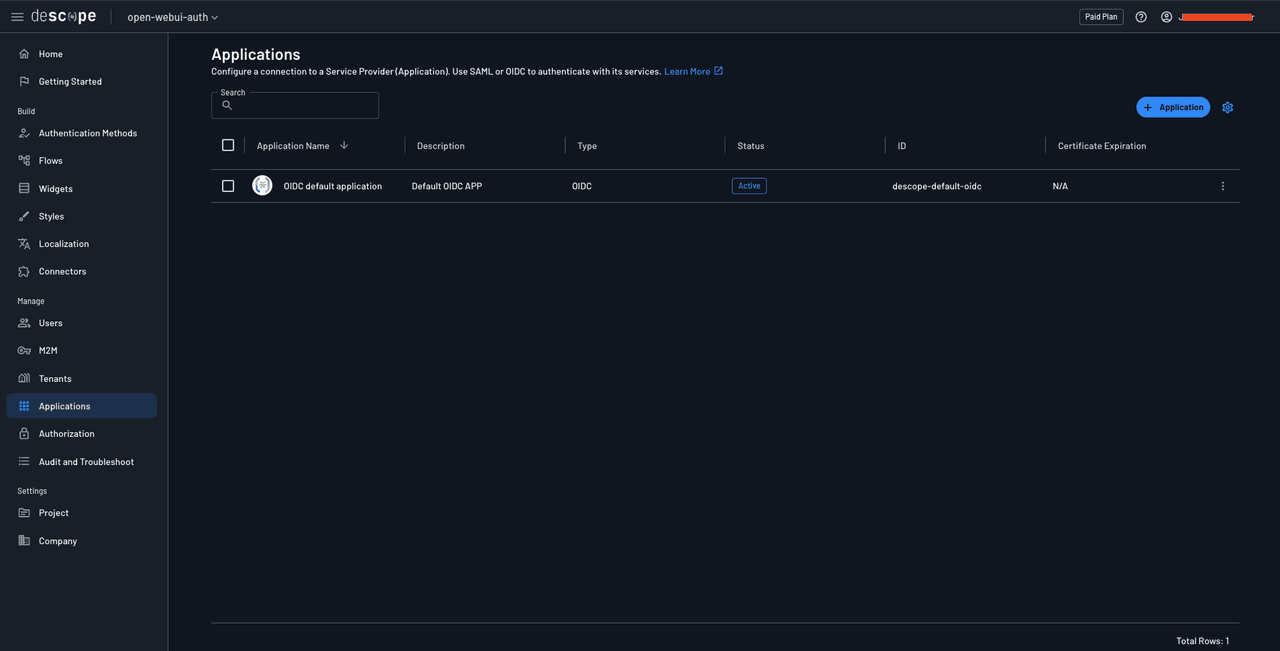
Screenshot of the Descope console Applications page. The heading reads Applications with subtext Configure a connection to a Service Provider (Application). Use SAML or OIDC to authenticate with its services. A Learn More link with an external link icon appears at the end. A Search field appears below the heading, and a + Application button with a settings gear icon is positioned in the top right. A table displays applications with column headers including a checkbox, Application Name with a sort arrow, Description, Type, Status, ID, and Certificate Expiration. One application row is shown with a checkbox, an icon showing connected nodes, the name OIDC default application, description Default OIDC APP, type OIDC, status showing a green Active badge, ID descope-default-oidc, and Certificate Expiration showing N/A. A three-dot menu icon appears at the end of the row. The bottom right shows Total Rows: 1. The left sidebar shows Applications highlighted in the navigation under the Manage section.
Fig: Navigating to Descope apps

You’ll see a list of applications attached to your Descope project. You should notice that a default OIDC application has been created for you automatically. You’ll use this Descope application to turn your Descope project into an SSO identity provider for your Open WebUI instance. Click the default application to view its details:

Screenshot of the Descope console showing the Edit OIDC default application Application page with an OIDC badge. The breadcrumb shows Back, Applications, and OIDC default application. The Application Details section is expanded, displaying the Descope connected nodes logo icon, Application name field containing OIDC default application, Application ID field containing descope-default-oidc with a copy icon, and Description field containing Default OIDC APP. The IdP Configuration section is expanded with the subheading Descope Configuration. It contains: Flow Hosting URL field showing https://api.descope.com/login/P[redacted]?flow=sign-up-or-in; Issuer field showing https://api.descope.com/P[redacted] (partially obscured with orange redaction) with a copy icon; Discovery URL field showing https://api.descope.com/[redacted]/.well-known/openid-configur (truncated) with a copy icon. The Supported Claims section displays multiple claim tags including iss, aud, iat, exp, sub, name, email, email_verified, phone_number, phone_number_verified, picture, family_name, and given_name, each with X icons to remove. An unchecked Force Authentication checkbox appears with a help icon. The right side shows an Application Help Guide panel explaining each field: Flow Hosting URL is described as The URL where the authentication flow is hosted (see section 3 for more details); Issuer URL is The URL used for validating Descope as an OIDC provider; Discovery URL Provides configuration information for OIDC setup; Supported Claims lists Claims included in the Discovery URL configuration (e.g., iss, sub, email); and Force Authentication Ensures re-authentication, regardless of the user's login status. Save and Discard buttons appear at the bottom.
Fig: Viewing the default app’s details

This page contains all the credentials you need to configure your Open WebUI instance to integrate this Descope project as the SSO identity provider through Open ID Connect (OIDC).

Setting up Open WebUI

Now that Descope has been set up, it’s time to fire up an Open WebUI instance. This tutorial uses a Docker Compose file to set up the Open WebUI instance and simplify environment variable management. You can use the same environment variables through the Python method as described in the Open WebUI docs.

Create a docker-compose.yml file on your system and save the following contents in it:

version: '3'
services:
  openwebui:
    image: ghcr.io/open-webui/open-webui:main
    ports:
      - "3000:8080"
    volumes:
      - open-webui:/app/backend/data
volumes:
  open-webui:

Run the command docker compose up in the same directory as this YML file to start up a docker container with the Open WebUI app in it.

Once it starts, you should be able to navigate to http://localhost:3000 and access the app:

Screenshot of the Open WebUI welcome screen displaying Michelangelo's Creation of Adam painting as the background image, showing the iconic scene of two hands reaching toward each other. The Open WebUI logo appears in the top left corner. Centered text in white serif font reads Explore the cosmos wherever you are. Below is a circular arrow icon and a Get started link. The overall design uses a dark overlay on the classical artwork to create contrast with the white text.
Fig: Viewing the Open WebUI instance

Click Get started at the bottom of the page, and you’ll be asked to create an admin account for the instance:
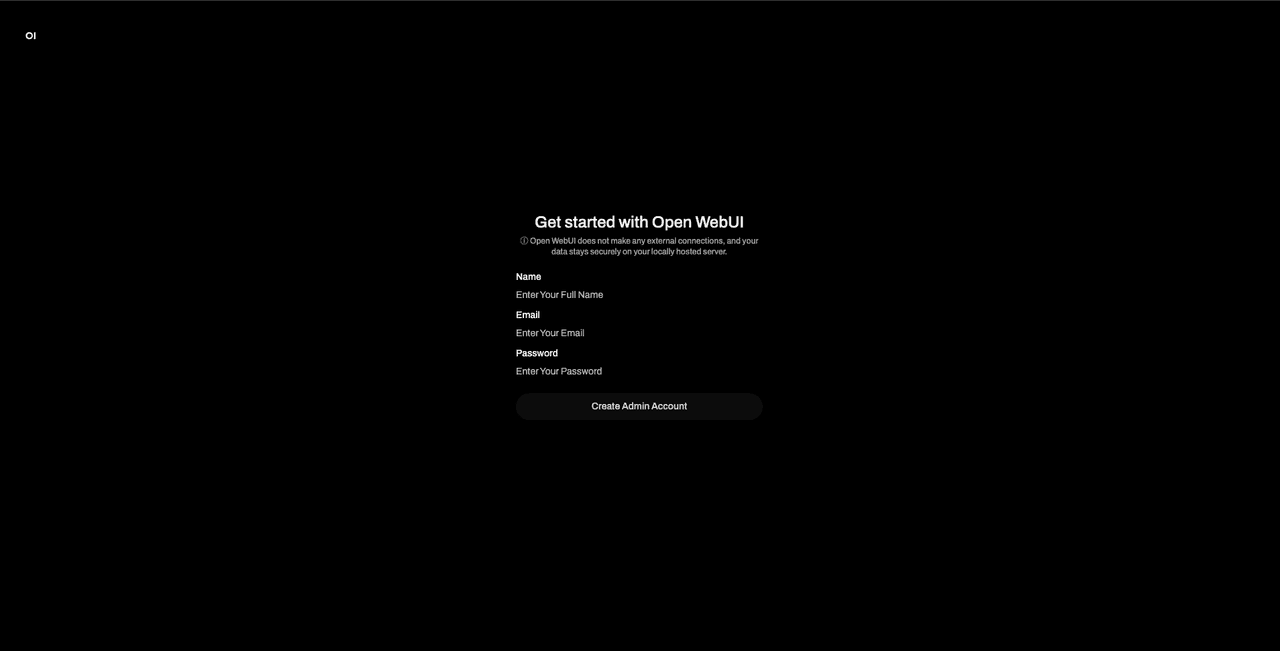
Screenshot of the Open WebUI account creation screen on a black background. The OI logo appears in the top left corner. The centered content displays the heading Get started with Open WebUI with an info icon and explanatory text below reading Open WebUI does not make any external connections, and your data stays securely on your locally hosted server. The form contains three fields: Name with placeholder text Enter Your Full Name, Email with placeholder text Enter Your Email, and Password with placeholder text Enter Your Password. Below the fields is a Create Admin Account button.
Fig: Creating an admin account

Create an admin account by providing your name and email address and setting a password. Make sure to remember its credentials as you will need this account to approve any new user accounts that sign up for your instance. You will later see how to control this through Descope directly without having to manually approve user accounts.

Once done, you’ll be taken to the chat page.
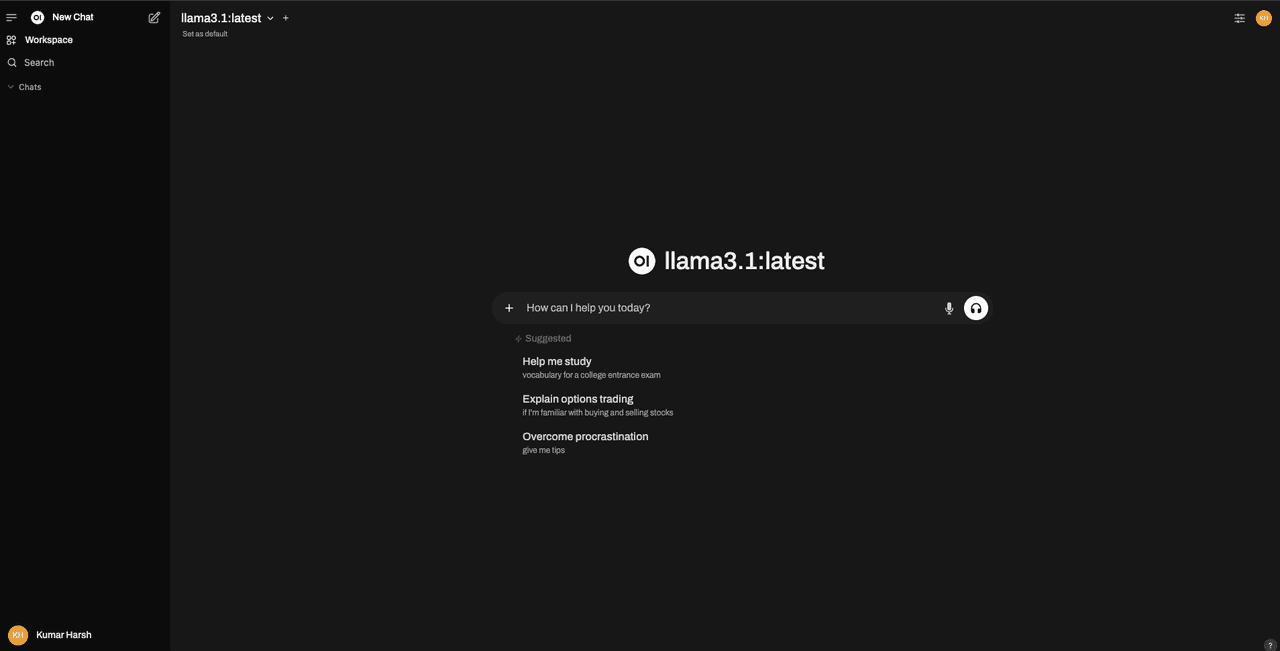
Screenshot of the Open WebUI chat interface after logging in. The left sidebar shows a hamburger menu icon, the Open WebUI logo, and a New Chat button with an edit icon at the top. Below are navigation items for Workspace and Search, followed by a Chats section with an expand arrow. At the bottom of the sidebar, a user avatar with initials shows the logged-in user Kumar Harsh. The header displays llama3.1:latest as the selected model with a dropdown arrow and plus icon, and Set as default text below. The top right shows a grid icon and user avatar. The main content area displays the llama3.1:latest model name with the Llama logo icon. Below is a chat input field with placeholder text How can I help you today? accompanied by a plus icon on the left and microphone and headphones icons on the right. A Suggested section shows three prompt suggestions: Help me study with subtext vocabulary for a college entrance exam; Explain options trading with subtext if I'm familiar with buying and selling stocks; and Overcome procrastination with subtext give me tips. A help icon appears in the bottom right corner.
Fig: The Open WebUI chat page

This means that you have set up Open WebUI correctly.

Implementing SSO with OIDC using Descope

As mentioned earlier, Open WebUI offers support for federated authentication through OIDC. To implement that, you need to stop your running Open WebUI instance, configure some environment variables in your Docker Compose file (or through your Python commands), and then run the instance once again.

Open the docker-compose.yml file you created earlier and update it to match the following:

version: '3'
services:
  openwebui:
    image: ghcr.io/open-webui/open-webui:main
    ports:
      - "3000:8080"
    volumes:
      - open-webui:/app/backend/data
    # Add the following `environment` node and the environment variables listed below
     environment:
         - ENABLE_OAUTH_SIGNUP=True
         - ENABLE_LOGIN_FORM=True
         - OAUTH_CLIENT_ID=<your Descope project ID>
         - OAUTH_CLIENT_SECRET=K2sanYIxha9VyfsHaq17x22cn7an5G7rKClr0ZgyfvXaZ5lk00oeL2V5mPkHGsc7fK0taBD
         - OPENID_PROVIDER_URL=https://api.descope.com/P2samMUcHcMXRJ3LVsxB0cKvRUfZ/SA2samXA6WdlKCh2nz0NZAVfztdfx/.well-known/openid-configuration
         - OAUTH_PROVIDER_NAME=Descope
volumes:
  open-webui:

This code snippet adds the following environment variables to the Open WebUI app:

  • ENABLE_OAUTH_SIGNUP: Setting this to True enables signing up via OAuth in Open WebUI’s login form.

  • ENABLE_LOGIN_FORM: This variable controls whether or not you can sign in via username and password into the Open WebUI instance. As you created the admin account with a username and password, setting it to true ensures you can log in as admin with those credentials.

  • OAUTH_CLIENT_ID: This is where you supply the client ID from the Descope OIDC app configuration page. The value for this variable will be the same as your Descope project ID.

  • OAUTH_CLIENT_SECRET: To provide this value, you will need to create a new access key in your Descope project. To do that, navigate to M2M under the Manage section of the left navigation pane of the Open WebUI panel and click the + Access Key button to create a new access key. Paste the key’s value in this variable.

  • OPENID_PROVIDER_URL: You will get the value for this from the OIDC app’s config page under Discovery URL.

  • OAUTH_PROVIDER_NAME: This is the name that will be displayed on the Sign in with SSO button on the Open WebUI auth page. Setting it to Descope will make the button’s title say Continue with Descope.

Once you have configured these values, run docker compose up --force-recreate to run the Open WebUI instance.

Your auth page should now have a new Continue with Descope button along with the usual email password login option.
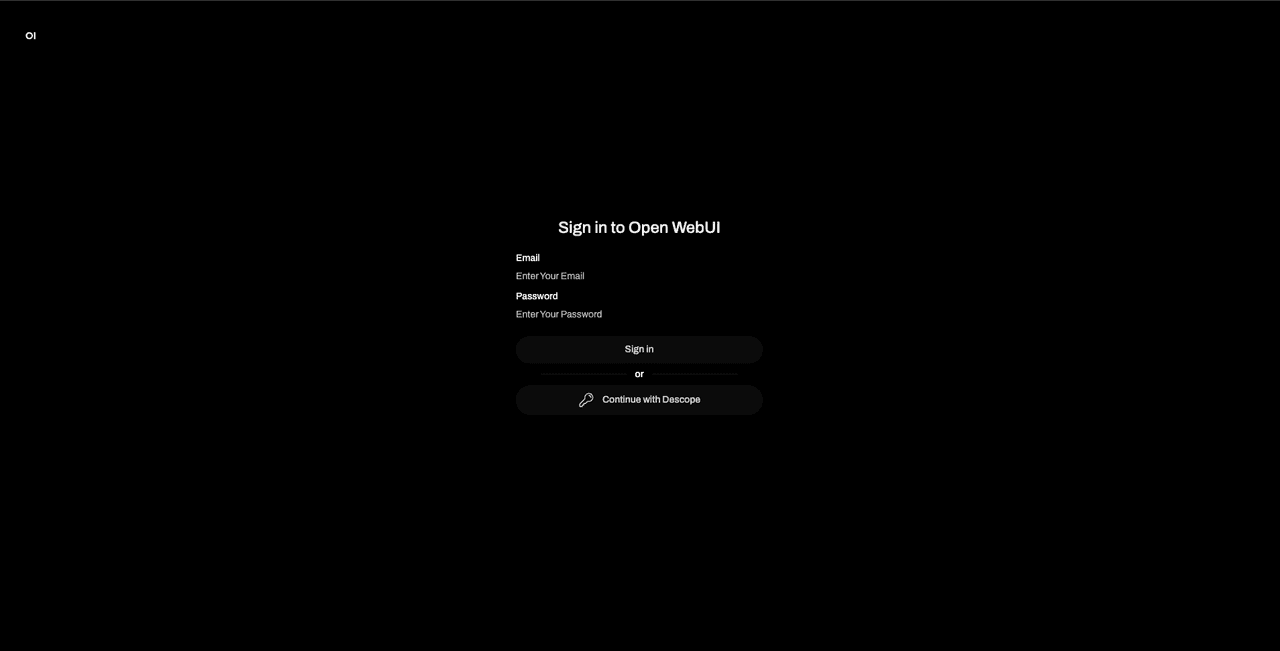
Screenshot of the Open WebUI sign-in page on a black background showing the integration with Descope authentication. The OI logo appears in the top left corner. The centered content displays the heading Sign in to Open WebUI. The form contains two fields: Email with placeholder text Enter Your Email, and Password with placeholder text Enter Your Password. Below is a Sign in button, followed by an or divider, and a Continue with Descope button featuring a key icon. This demonstrates the SSO option added through the Descope integration alongside the traditional email and password login method.
Fig: The updated Open WebUI sign-in page

Click Continue with Descope to use Descope to sign into the app:
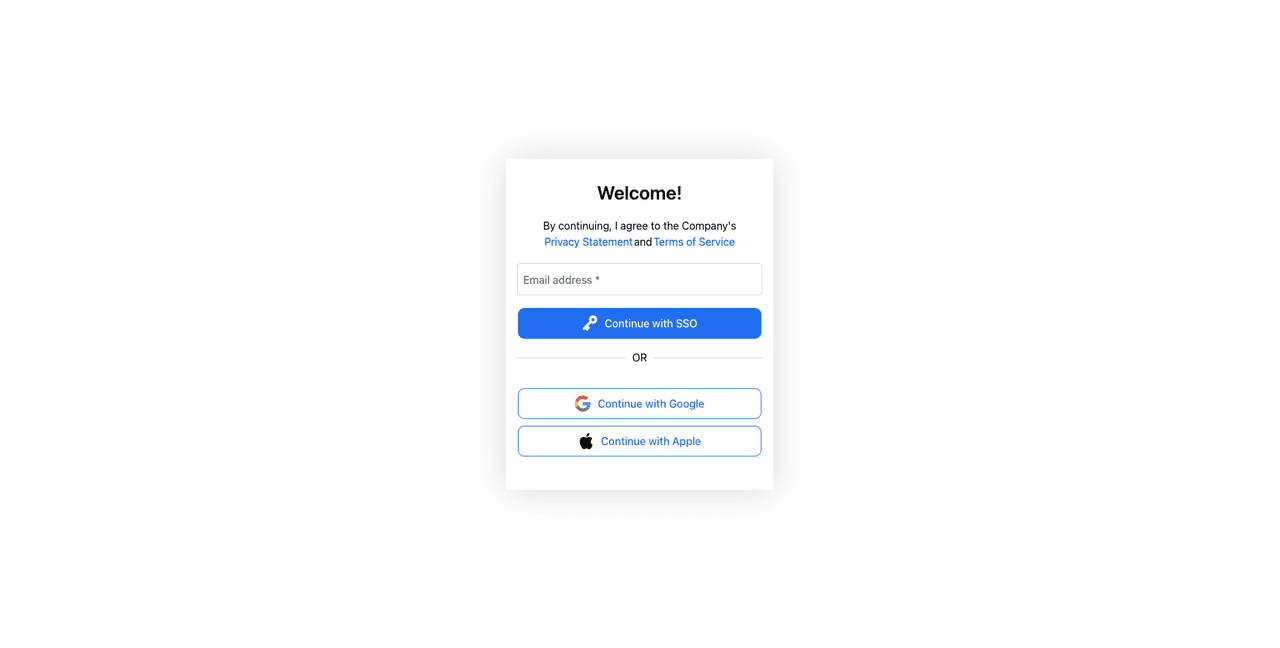
Screenshot of the Descope federated authentication page displayed after clicking Continue with Descope from Open WebUI. A white modal card appears centered on a light gray background with the heading Welcome! in bold. Below is the text By continuing, I agree to the Company's followed by links to Privacy Statement and Terms of Service in blue. An Email address input field with an asterisk indicating required appears below. A filled blue Continue with SSO button with a key icon is the primary action. An OR divider separates the SSO option from social login alternatives. Two outlined buttons appear below: Continue with Google with the Google logo icon, and Continue with Apple with the Apple logo icon. This page represents the Descope authentication flow offering multiple sign-in options including enterprise SSO and social providers.
Fig: The Descope federated auth page

Since you configured social login and enchanted links as the authentication methods, you can use either of those two to log in to your Open WebUI instance.

Once you’re logged in, you should see the following screen saying that your account is pending activation from an Open WebUI admin:
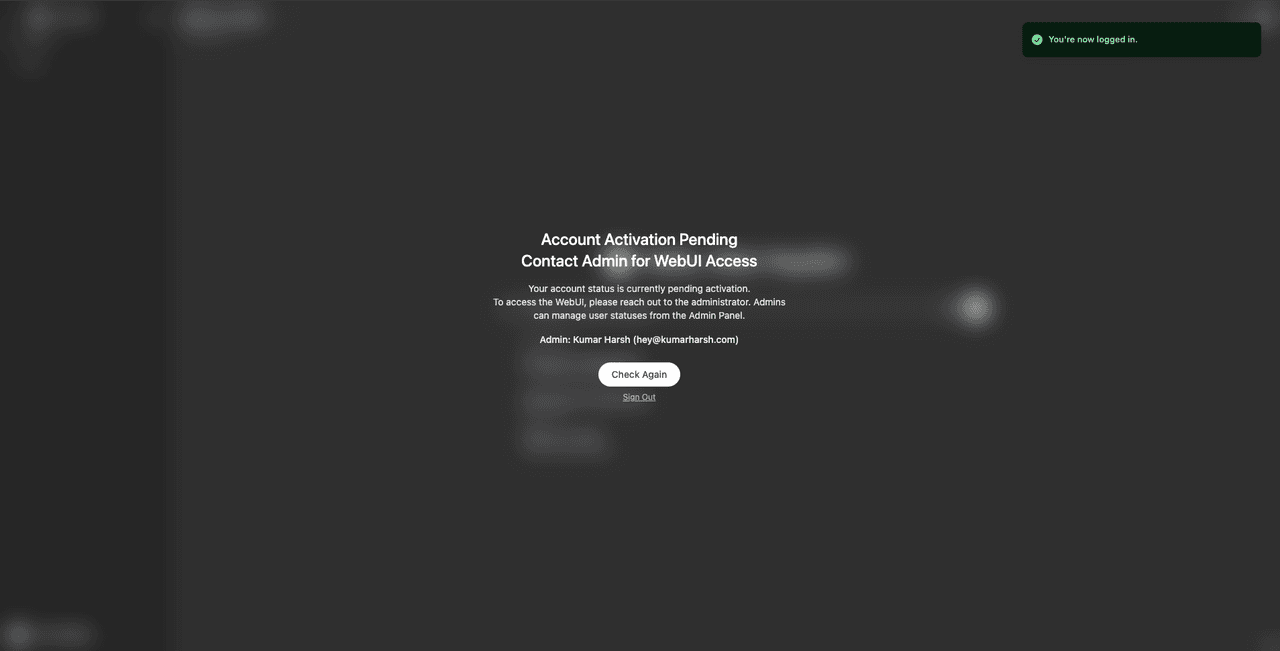
Screenshot of the Open WebUI interface showing an account activation pending message after successful SSO login. A green success toast notification in the top right corner displays a checkmark icon and the message You're now logged in. The main content area shows a centered message with the heading Account Activation Pending Contact Admin for WebUI Access. Below is explanatory text reading Your account status is currently pending activation. To access the WebUI, please reach out to the administrator. Admins can manage user statuses from the Admin Panel. The administrator contact information shows Admin: Kumar Harsh (hey@kumarharsh.com). A Check Again button appears below, followed by a Sign Out link. The left sidebar of the Open WebUI interface is partially visible but dimmed in the background.
Fig: Banner informing that new account is pending activation

This means that you’ve logged in successfully, but your Open WebUI account is in the “pending” state, waiting for an admin to approve it. You’ll also notice the details of the admin on the screen.

You can now try signing out from this account and signing in with the admin account to see the newly created user in the admin panel:

Screenshot of the Open WebUI admin panel showing the Users management page. The top navigation bar displays tabs for Users (currently selected), Evaluations, Functions, and Settings. The left sidebar shows Overview and Groups navigation options. The main content area has the heading Users with a count of 2, along with a Search field and plus icon in the top right. A table displays user information with columns for Role, Name, Email, Last Active, Created At, and OAuth ID. The first row shows a user with a green ADMIN badge, name Kumar Harsh with avatar, email hey@[redacted] (partially obscured with orange), Last Active showing a few seconds ago, Created At showing February 07, 2025, and an edit icon. The second row shows a user with a yellow PENDING badge, name Alex Hayden with an A avatar, email alexha[redacted].com (partially obscured with orange), Last Active showing a minute ago, Created At showing February 07, 2025, OAuth ID showing oidc@U2sIADExDpW5vDhI4XRxvFBoDQEg, and three action icons for chat, edit, and delete. Below the table is pagination showing page 1 with navigation arrows, and helper text reading Click on the user role button to change a user's role. The left sidebar also shows the logged-in user Kumar Harsh at the bottom.
Fig: Viewing the user accounts in the admin panel

Once you click the PENDING chip under the Role column for the new user account, it will turn to USER. This indicates that the account has now been assigned the USER role, which allows them access to the instance. Try logging in via Descope once again to check if you can access the Open WebUI instance via the new user account.

Apart from the USER role, Open WebUI allows you to set a user as PENDING (which you’ve already seen) and ADMIN. Users with the admin role can access the admin panel, which you saw above, and can change the instance settings. You can try clicking on the role chips to cycle through all these three options for any user.

Implementing role management via OAuth claims

By default, when a new user signs up for an account on Open WebUI, they must wait for an admin to approve it. This approval step must also be completed separately within the Open WebUI instance. Since you’re using a federated authentication provider, it’s best to handle role management in Descope. This will allow users to sign in and access the Open WebUI instance directly without needing manual approvals.

You can use custom claims to manage the roles. OAuth claims are key value pairs that contain information about a user. These are shared by the identity provider (here, Descope) with the service provider (here, Open WebUI). The discovery URL of the identity provider includes these claims, which are picked up by the service provider during integration.

Descope includes the following user information by default as claims in the discovery URL:

{
  "claims_supported":["iss", "aud", "iat", "exp", "sub", "name", "email", "email_verified", "phone_number", "phone_number_verified", "picture", "family_name", "given_name"]
}

Descope allows you to add custom claims to expose additional user information based on your requirements. This feature will come in handy here as it allows you to expose the role assigned to users in your Descope project (either user or admin) and map them to the USER and ADMIN roles supported by Open WebUI. This will allow you to tag users as user or admin in your Descope user directory to allow them access as a USER or an ADMIN role in the Open WebUI instance without having to go through the hassle of manual account creation and approval.

To do this, you need to create two roles in Descope. Head over to Authorization under Manage in the left navigation pane on the Descope dashboard and click the + Role button to add a new role:
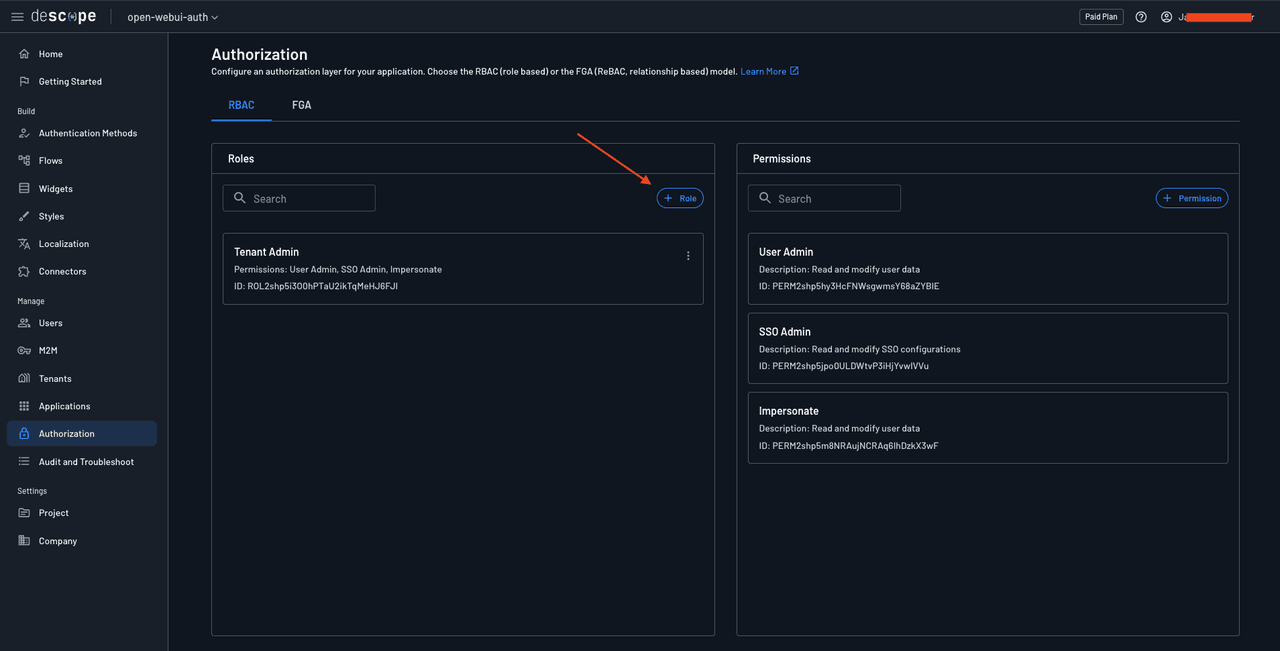
Screenshot of the Descope console Authorization page showing the RBAC (Role-Based Access Control) configuration. The heading reads Authorization with subtext Configure an authorization layer for your application. Choose the RBAC (role based) or the FGA (ReBAC, relationship based) model. A Learn More link with external icon appears at the end. Two tabs are shown: RBAC (currently selected) and FGA. The page is divided into two panels. The left panel is labeled Roles with a Search field and a + Role button highlighted by an orange arrow pointing to it. One role is listed: Tenant Admin with Permissions: User Admin, SSO Admin, Impersonate and ID: ROL2shp5i3O0hPTaU2ikTqMeHJ6FJI, with a three-dot menu icon. The right panel is labeled Permissions with a Search field and a + Permission button. Three permissions are listed: User Admin with Description: Read and modify user data and ID: PERM2shp5hy3HcFNWsgwmsY68aZYBiE; SSO Admin with Description: Read and modify SSO configurations and ID: PERM2shp5jpo0ULDWtvP3iHjYvwlVVu; and Impersonate with Description: Read and modify user data and ID: PERM2shp5m8NRAujNCRAq6lhDzkX3wF. The left sidebar shows Authorization highlighted in the navigation under the Manage section.
Fig: Creating a new role in Descope

Name the role owui-user and click add to create the role. Similarly, create another role named owui-admin. Once done, you should have three roles: owui-admin, owui-user, and Tenant Admin.
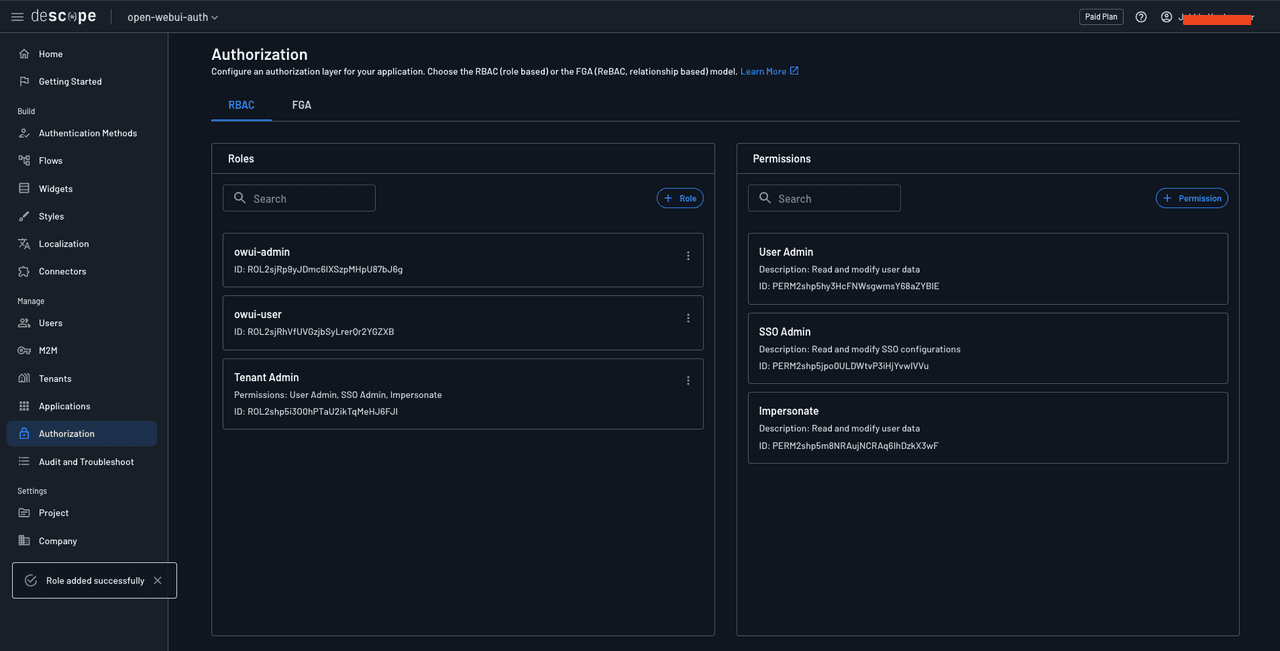
Screenshot of the Descope console Authorization page showing the RBAC configuration with newly added roles. The Roles panel on the left now displays three roles: owui-admin with ID: ROL2sjRp9yJDmc6lXSzpMHpU87bJ8g and a three-dot menu icon; owui-user with ID: ROL2sjRhVfUVGzjbSyLrer0r2YGZXB and a three-dot menu icon; and Tenant Admin with Permissions: User Admin, SSO Admin, Impersonate and ID: ROL2shp5i3O0hPTaU2ikTqMeHJ6FJI and a three-dot menu icon. The Permissions panel on the right remains unchanged, showing User Admin with Description: Read and modify user data and ID: PERM2shp5hy3HcFNWsgwmsY68aZYBiE; SSO Admin with Description: Read and modify SSO configurations and ID: PERM2shp5jpo0ULDWtvP3iHjYvwlVVu; and Impersonate with Description: Read and modify user data and ID: PERM2shp5m8NRAujNCRAq6lhDzkX3wF. A success toast notification appears in the bottom left corner with a checkmark icon and the message Role added successfully with an X to dismiss.
Fig: Two new roles added to Descope

Head over to Application in the left navigation pane and navigate to the OIDC default application’s details page. Here, in the Supported Claims input field, add a custom claim named roles.
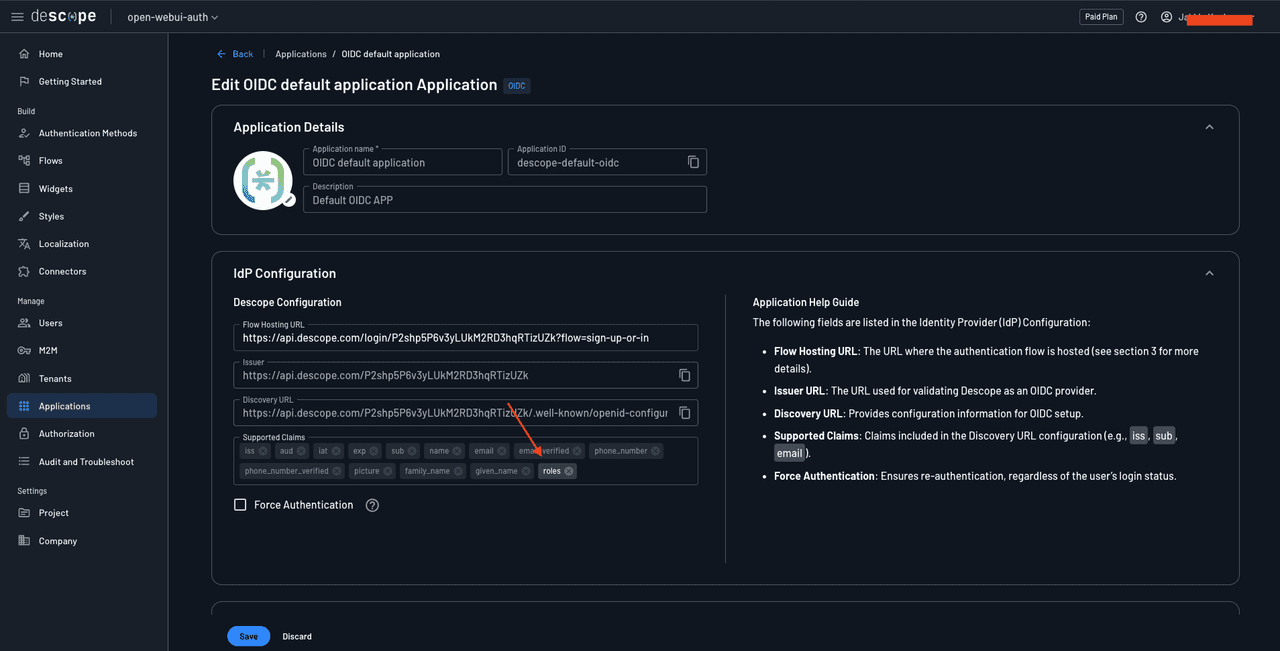
Screenshot of the Descope console showing the Edit OIDC default application Application page with updated Supported Claims. The Application Details section displays the Descope logo icon, Application name field containing OIDC default application, Application ID field containing descope-default-oidc with a copy icon, and Description field containing Default OIDC APP. The IdP Configuration section shows Descope Configuration with Flow Hosting URL containing https://api.descope.com/login/P2shp5P6v3yLUkM2RD3hqRTizUZk?flow=sign-up-or-in, Issuer field containing https://api.descope.com/P2shp5P6v3yLUkM2RD3hqRTizUZk with a copy icon, and Discovery URL containing https://api.descope.com/P2shp5P6v3yLUkM2RD3hqRTizUZk/.well-known/openid-configur (truncated) with a copy icon. The Supported Claims section now includes an additional roles tag highlighted with an orange arrow pointing to it, alongside the existing claim tags: iss, aud, iat, exp, sub, name, email, email_verified, phone_number, phone_number_verified, picture, family_name, and given_name. An unchecked Force Authentication checkbox appears with a help icon. The right side shows the Application Help Guide panel explaining each configuration field. Save and Discard buttons appear at the bottom.
Fig: New custom claim roles added to Descope

You also need to configure the Open WebUI instance to recognize this new claim and its possible values. To do that, add the following environment variables to the docker-compose.yml file for the Open WebUI instance:

version: '3'
services:
  openwebui:
    image: ghcr.io/open-webui/open-webui:main
    ports:
      - "3000:8080"
    volumes:
      - open-webui:/app/backend/data
     environment:
         - ENABLE_OAUTH_SIGNUP=True
         - ENABLE_LOGIN_FORM=True
         - OAUTH_CLIENT_ID=<your Descope project ID>
         - OAUTH_CLIENT_SECRET=K2sanYIxha9VyfsHaq17x22cn7an5G7rKClr0ZgyfvXaZ5lk00oeL2V5mPkHGsc7fK0taBD
         - OPENID_PROVIDER_URL=https://api.descope.com/P2samMUcHcMXRJ3LVsxB0cKvRUfZ/SA2samXA6WdlKCh2nz0NZAVfztdfx/.well-known/openid-configuration
         - OAUTH_PROVIDER_NAME=Descope
        
        # Add the following environment variables
        - ENABLE_OAUTH_ROLE_MANAGEMENT=True
        - OAUTH_SCOPES=openid email profile descope.claims descope.custom_claims
        - OAUTH_ROLES_CLAIM=roles
        - OAUTH_ALLOWED_ROLES=owui-user
        - OAUTH_ADMIN_ROLES=owui-admin
volumes:
  open-webui:

Setting ENABLE_OAUTH_ROLE_MANAGEMENT to True delegates role management to the OAuth identity provider. The default value for OAUTH_SCOPES is openid email profile. You’ve added descope.claims descope.custom_claims above to allow the Open WebUI instance to access the default and custom claims supplied by Descope. OAUTH_ROLES_CLAIM allows you to define the claim that contains the value for the role to be assigned to the OAuth users. OAUTH_ALLOWED_ROLES allows you to define the Descope roles that will be mapped to the USER Open WebUI role. Similarly, OAUTH_ADMIN_ROLES allows you to define the Descope roles that will be mapped to the ADMIN Open WebUI role.

With all these variables configured, you can now try running docker compose up --force-recreate to rerun the Open WebUI instance and test it out.

Before trying to sign in to your Open WebUI instance, try creating a new user in Descope and assigning it the role owui-admin, for instance:

Screenshot of the Descope console showing a Create Users modal dialog overlaying the Users page. The modal heading reads Create Users with subtext Create one or more users and determine whether sending them an invitation message is necessary. The Login IDs field shows a tag with a partially obscured email address (ku[redacted]dev) with an X to remove, and helper text below reads Supports emails and phone numbers. The User Attributes section is expanded with the subtext Add details about your user(s). It contains Name field with value Kumar Harsh, Email field with a partially obscured value (k[redacted]v) and an Add as Login ID link, and an empty Phone field. The Authorization section is expanded with a help icon and subtext Define user access to tenants, and assign roles:. A Tenants dropdown appears on the left, and a Roles dropdown on the right shows owui-admin as a selected tag with an X to remove, highlighted by an orange box around it. Plus and minus icons appear to the right for adding or removing tenant-role pairs. Below is Define user access to applications: with an Applications dropdown showing All Applications as a selected tag with an X. A User Invitations section heading is partially visible at the bottom. Cancel and Create buttons appear in the bottom right corner of the modal. The background shows the dimmed Users page with a list displaying alexhayden141@gma... as a visible user entry.
Fig: Creating a new admin user in Descope

Now, when you try logging in with this user into Open WebUI using Descope, you will observe that it is directly promoted to an ADMIN:

Screenshot of the Open WebUI admin panel Users page showing a newly created admin user. The Users count now shows 3. The table displays three user rows: the first row shows a green ADMIN badge, name Kumar Harsh with avatar, email h[redacted] (obscured with orange), Last Active showing 2 hours ago, Created At showing February 07, 2025, and an edit icon. The second row shows a yellow PENDING badge, name Alex Hayden with an A avatar, email a[redacted]m (obscured with orange), Last Active showing 11 hours ago, Created At showing February 07, 2025, OAuth ID showing oidc@U2sIADExDpW5vDhI4XRxvFBoDQEg, and three action icons. The third row shows a green ADMIN badge highlighted by an orange arrow pointing to it, name Kumar Harsh, Tech Ed with an avatar, email k[redacted]v (obscured with orange), Last Active showing a few seconds ago, Created At showing February 08, 2025, OAuth ID showing oidc@U2sjUAtHB9x0Vw1c7c7tuvWeeMx2, and an edit icon. The left sidebar shows the logged-in user Kumar Harsh, Tech Ed at the bottom, indicating the new admin user is now authenticated and active.
Fig: New admin created in Open WebUI

You can also try assigning a Descope user the role owui-user to have them get assigned the USER role in Open WebUI.

Managing Open WebUI user permissions

Normally, OAuth IdPs should be able to allow you to manage permissions associated with user roles as well. However, Open WebUI does not provide mappings or configurations to allow setting permissions at the OAuth IdP level. You only get two roles: USER and ADMIN. For users with the role USER, Open WebUI allows you to configure platform permissions via its users page (/admin/users). You can edit permissions—such as turning on or off the chat ability—and allow file uploads, chat deletion, chat edits, and temporary chats, among others.
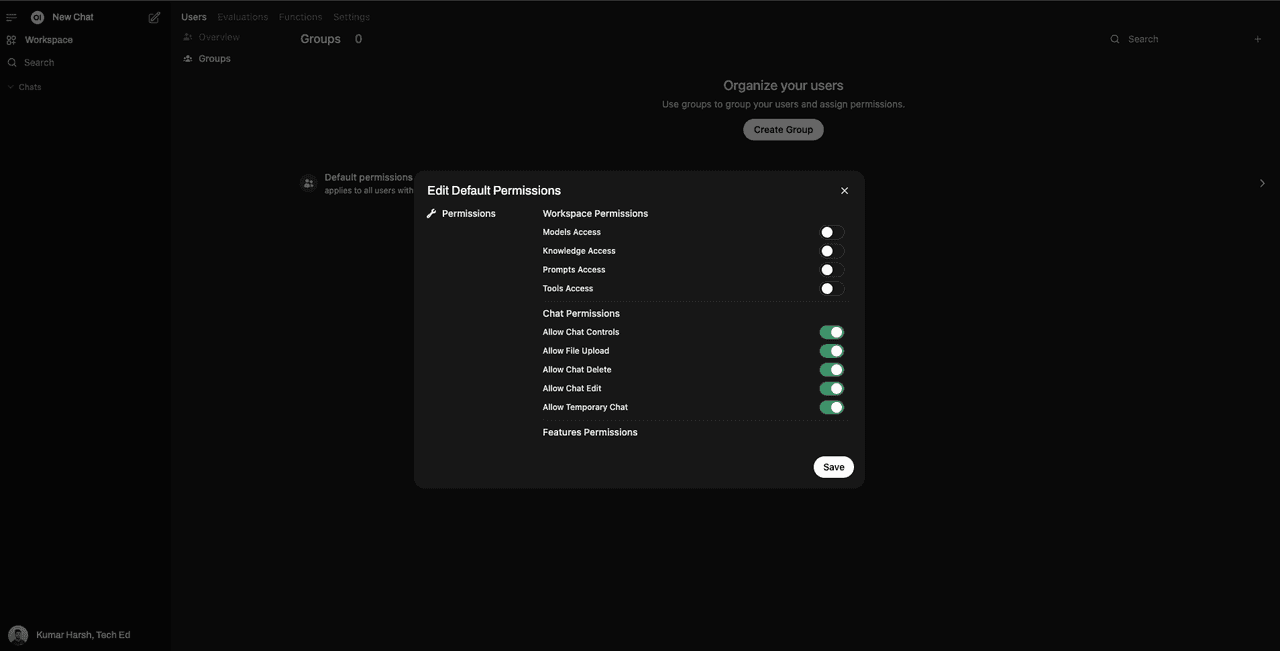
Screenshot of the Open WebUI admin panel Groups page with an Edit Default Permissions modal dialog open. The background shows the Groups page with a count of 0, navigation options for Overview and Groups in the left panel, and main content displaying Organize your users with subtext Use groups to group your users and assign permissions and a Create Group button. A Default permissions section is partially visible behind the modal. The Edit Default Permissions modal shows an X close button in the top right corner. The left side displays a wrench icon with Permissions label. The right side shows permission toggle switches organized into sections. The Workspace Permissions section includes Models Access (off), Knowledge Access (off), Prompts Access (off), and Tools Access (off), all shown with gray toggle switches. The Chat Permissions section includes Allow Chat Controls (on, green toggle), Allow File Upload (on, green toggle), Allow Chat Delete (on, green toggle), Allow Chat Edit (on, green toggle), and Allow Temporary Chat (on, green toggle). A Features Permissions section heading is visible at the bottom. A Save button appears in the bottom right corner of the modal. The logged-in user Kumar Harsh, Tech Ed is shown at the bottom of the left sidebar.
Fig: Viewing available permission controls in Open WebUI

You can either set these permissions for all USERs, or create “groups” of users that are assigned a specific set of permissions. A group of users in Open WebUI is a collection of users with a specific set of permissions assigned to them. You can create and manage user groups through the Open WebUI admin panel.

Open WebUI also allows you to use the ENABLE_OAUTH_GROUP_MANAGEMENT environment variable to allow delegating group assignments to OAuth IdPs and the OAUTH_GROUP_CLAIM to define the claim that contains the value for the group to be assigned to the OAuth users. You can try these out for yourself to configure user access on a more granular level through your Descope project.

Conclusion

SSO has become a staple in modern organizations of all sizes because it simplifies user access to multiple applications while reducing the risk of password-related vulnerabilities. SSO helps organizations significantly improve user experience, increase productivity, and reduce IT costs associated with password management and security breaches.

In this tutorial, you learned how to create a new Descope project and use it as an SSO identity provider to integrate it into an Open WebUI instance through OIDC. You also saw how to delegate role management to Descope and learned how Open WebUI makes it possible to create user groups that you can assign via Descope to your Open WebUI users.

With Descope’s seamless SSO integration, you can make your Open WebUI instance more secure, scalable, and user-friendly. By centralizing authentication and access management, you can enhance both security and convenience for your users while reducing the overhead of handling credentials. Make sure to try it out for yourself!